Sell Product & Sales
Sell Product is a point of sale for the stock you hold — cases, cables, adapters, screen protectors, spare parts sold over the counter. It is separate from repair jobs and from trade-in sales.
Which one do I use?
| Situation | Use |
|---|---|
| Customer buys an accessory or a spare part | Sell Product |
| Customer leaves a device for repair | New Job |
| Customer buys a used device you took in | Trade Sale |
The POS
Select Sell Product in the sidebar.
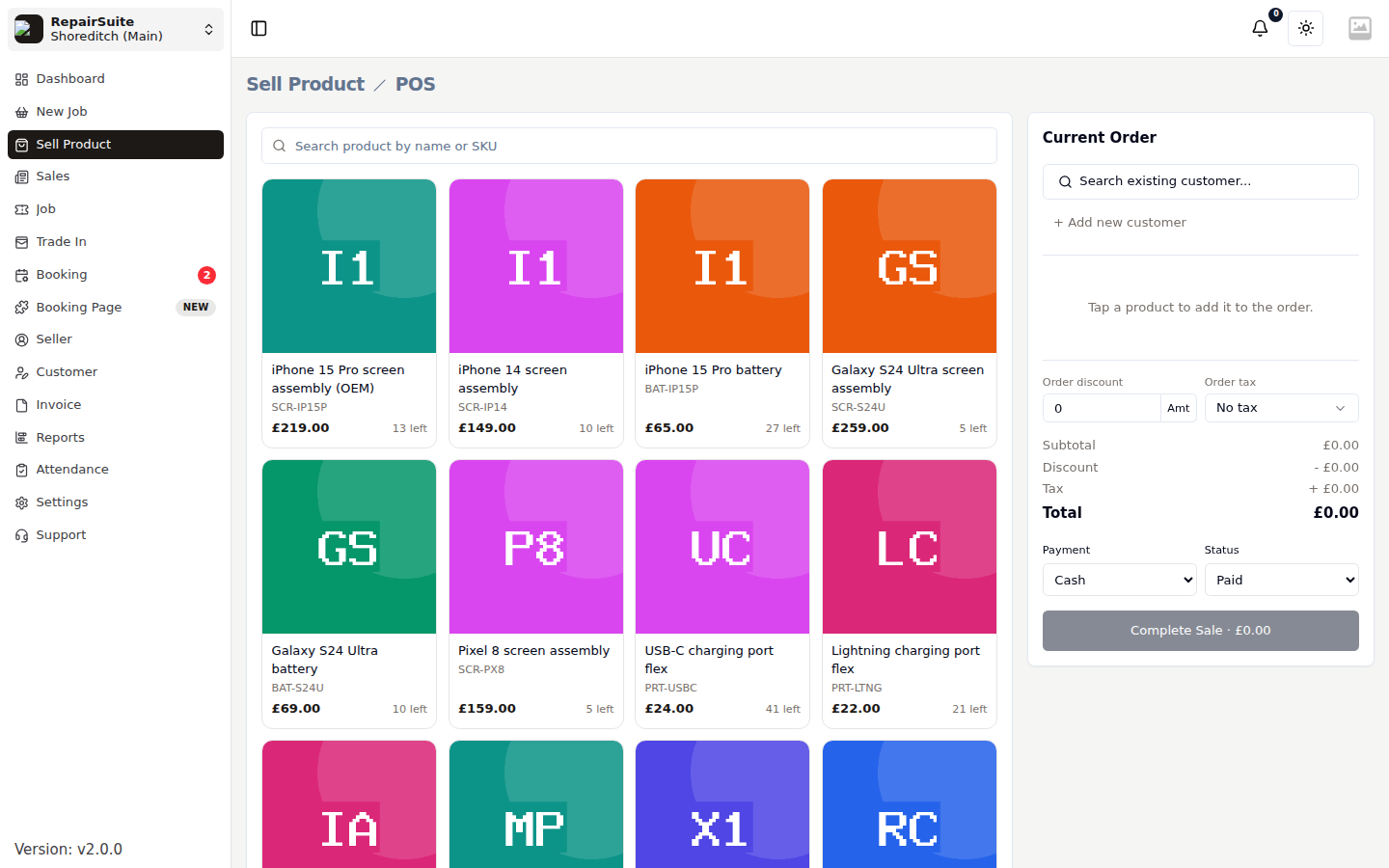
The screen is a catalogue on the left and the order on the right.
Catalogue
Every active product with stock, showing its image, name, SKU, price and how many are left. Search by name or SKU to narrow it. Tap a product to add it to the order; tap again — or use the stepper in the cart — to change the quantity.
Current Order
| Control | What it does |
|---|---|
| Search existing customer | Attach a customer to the sale |
| Add new customer | Create one inline without leaving the POS |
| Per-line discount and tax | Set on each cart line, using your branch's tax classes |
| Order discount | A discount across the whole order, as an amount or a percentage |
| Order tax | A tax class applied to the order total |
| Payment | Cash, Card or Bank Transfer |
| Status | Paid or Pending |
The totals panel itemises Subtotal, Discount and Tax before the Total, so the customer can see how the number was reached.
:::note Percentage tax classes are calculated on the line total after its discount; fixed tax classes add their flat rate. Only tax classes belonging to your branch can be used. :::
Click Complete Sale to finish. RepairSuite decrements stock, creates the sale and generates the invoice.
Sales history
Select Sales in the sidebar for every sale at this branch.
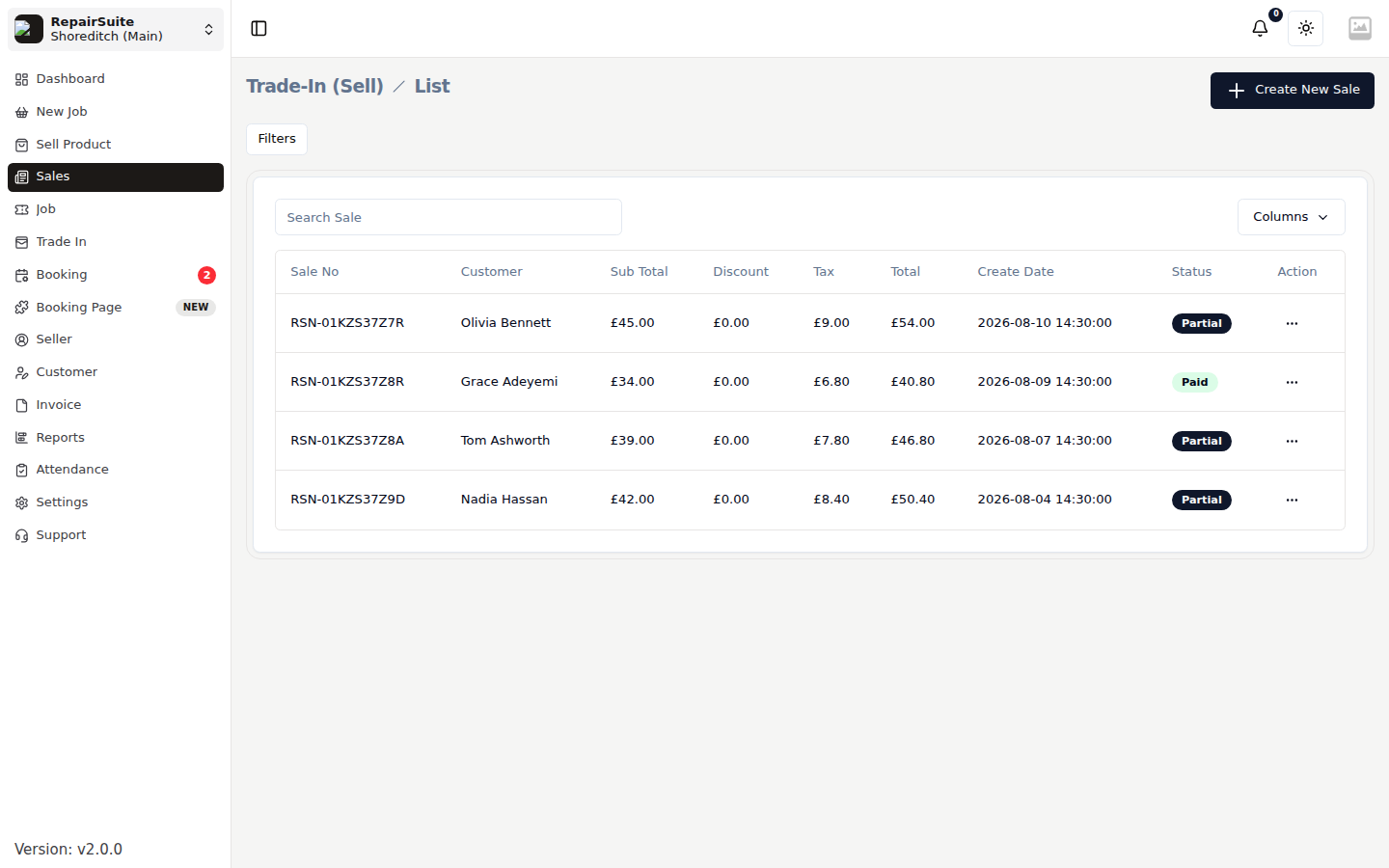
Filter by payment status or date range, and search by sale number or customer.
| Payment status | Meaning |
|---|---|
| Pending | Sale recorded, payment not collected |
| Paid | Settled in full |
| Cancelled | Sale voided |
Sale invoice
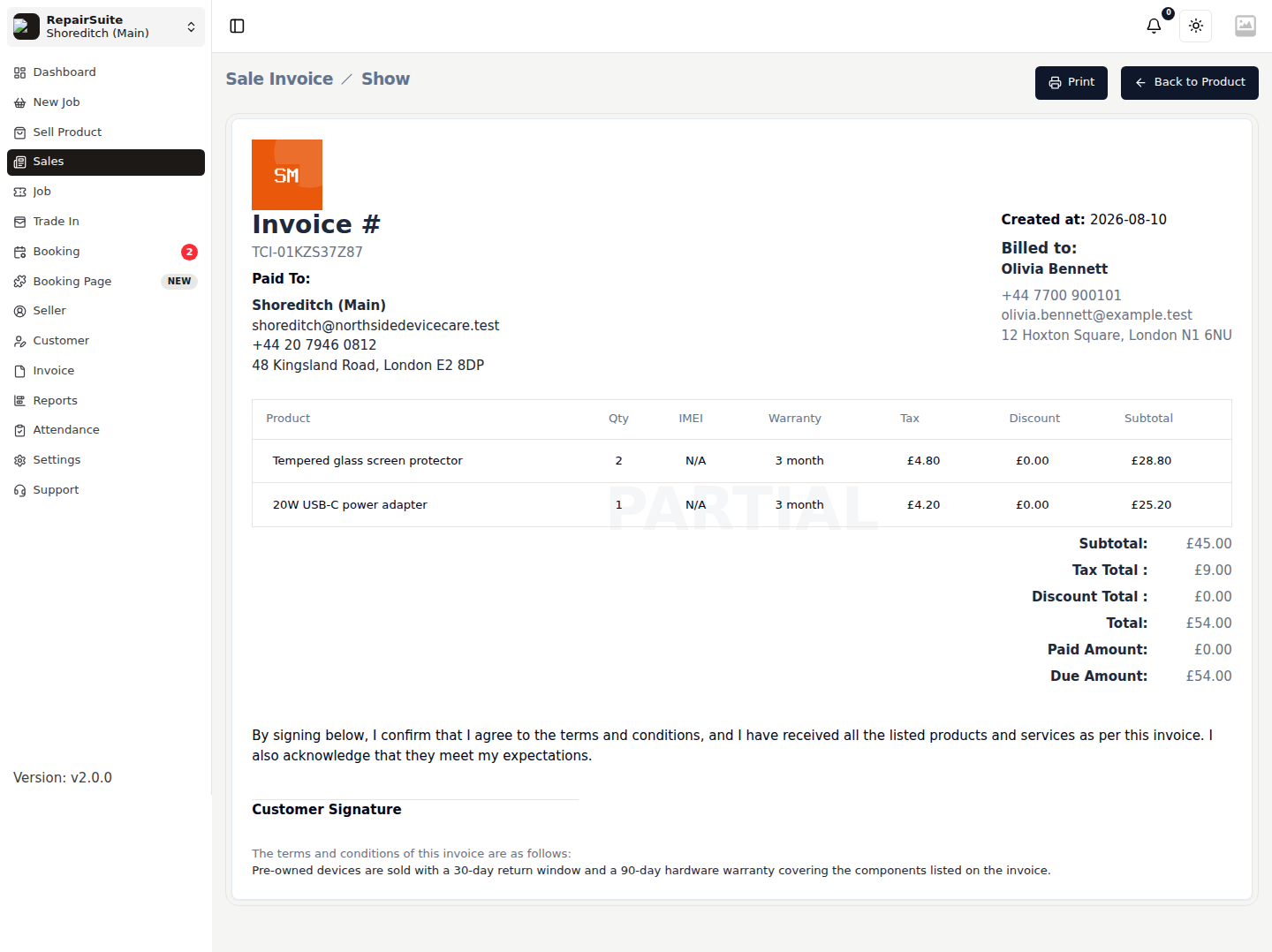
Every sale generates an invoice. Open the sale and choose Invoice to view it, print it, or download a PDF for the customer. Sale invoices appear alongside job invoices in the Invoices list.
Tax
Configure the rates you charge under Tax Classes. They are then selectable per line and on the order total in the POS.
Stock
Selling through the POS creates a stock movement against the product, so the sale is visible in Stock Overview, the transaction log, and the inventory reports. Products with no stock left are not sellable.
Related
- Products — the catalogue behind the POS
- Reports — sales summary and profit margin
- Menu Settings — hide Sell Product and Sales if you only do repairs