Trade In
Trade In covers the second-hand side of the business: buying a used device from a walk-in seller, documenting the purchase with ID and a signature, and selling the device on.
:::note
This module was previously called Resell Products, and lived at /resell-product. It now reads Trade In and lives at /trade-in. The two actions are Trade Purchase (you buy) and Trade Sale (you sell).
:::
Trade-In List
Select Trade In in the sidebar.
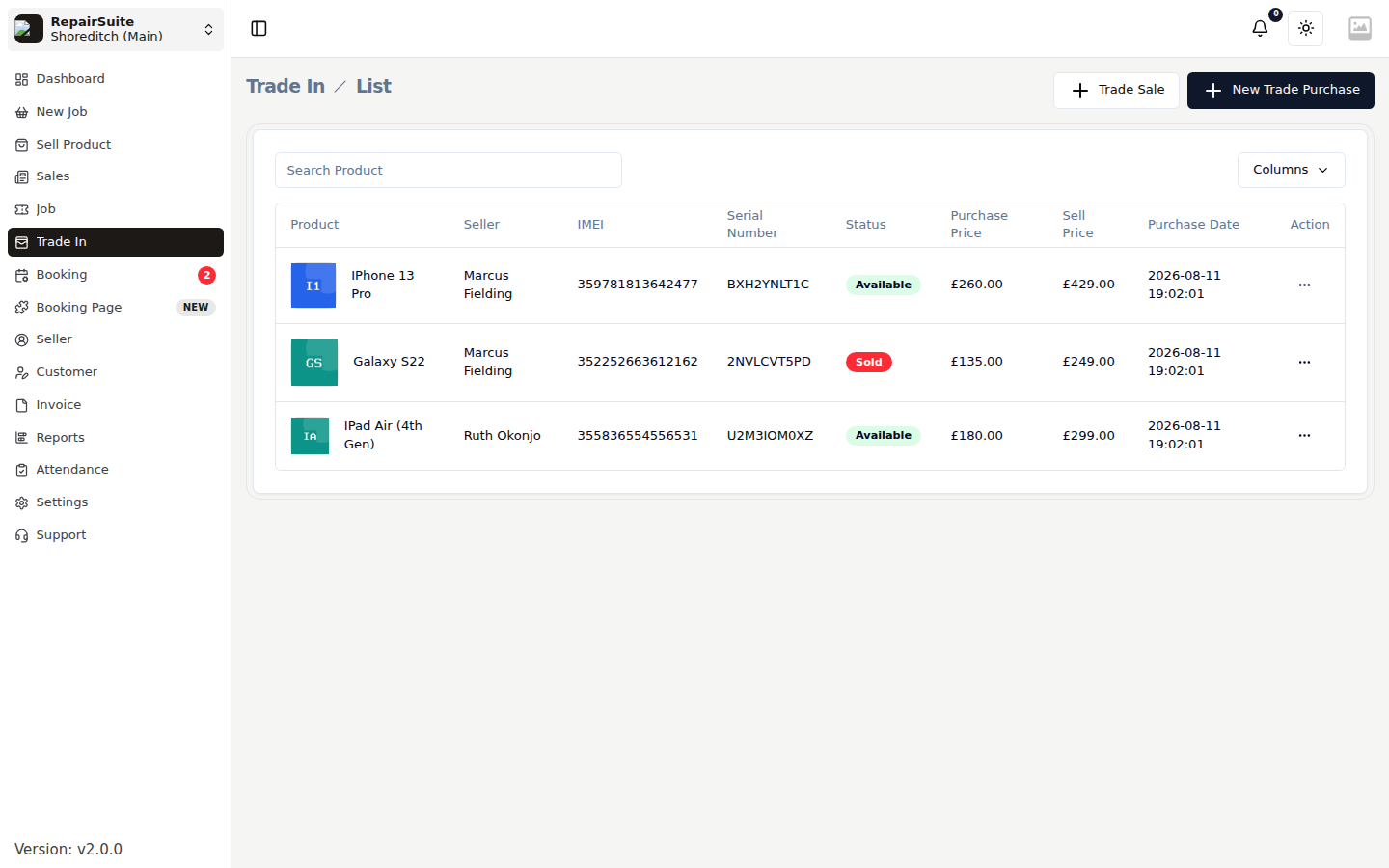
| Column | What it shows |
|---|---|
| Product | The device you bought |
| Seller | Who you bought it from |
| IMEI / Serial Number | Device identity, recorded at purchase |
| Status | Available (in stock) or Sold |
| Purchase Price | What you paid |
| Sell Price | What it is listed at |
| Purchase Date | When you took it in |
Two buttons sit top right: New Trade Purchase to buy a device, and Trade Sale to sell one on.
Buying a device (Trade Purchase)
Click New Trade Purchase. The form is a two-step wizard, and both steps stay filled in as you move between them.
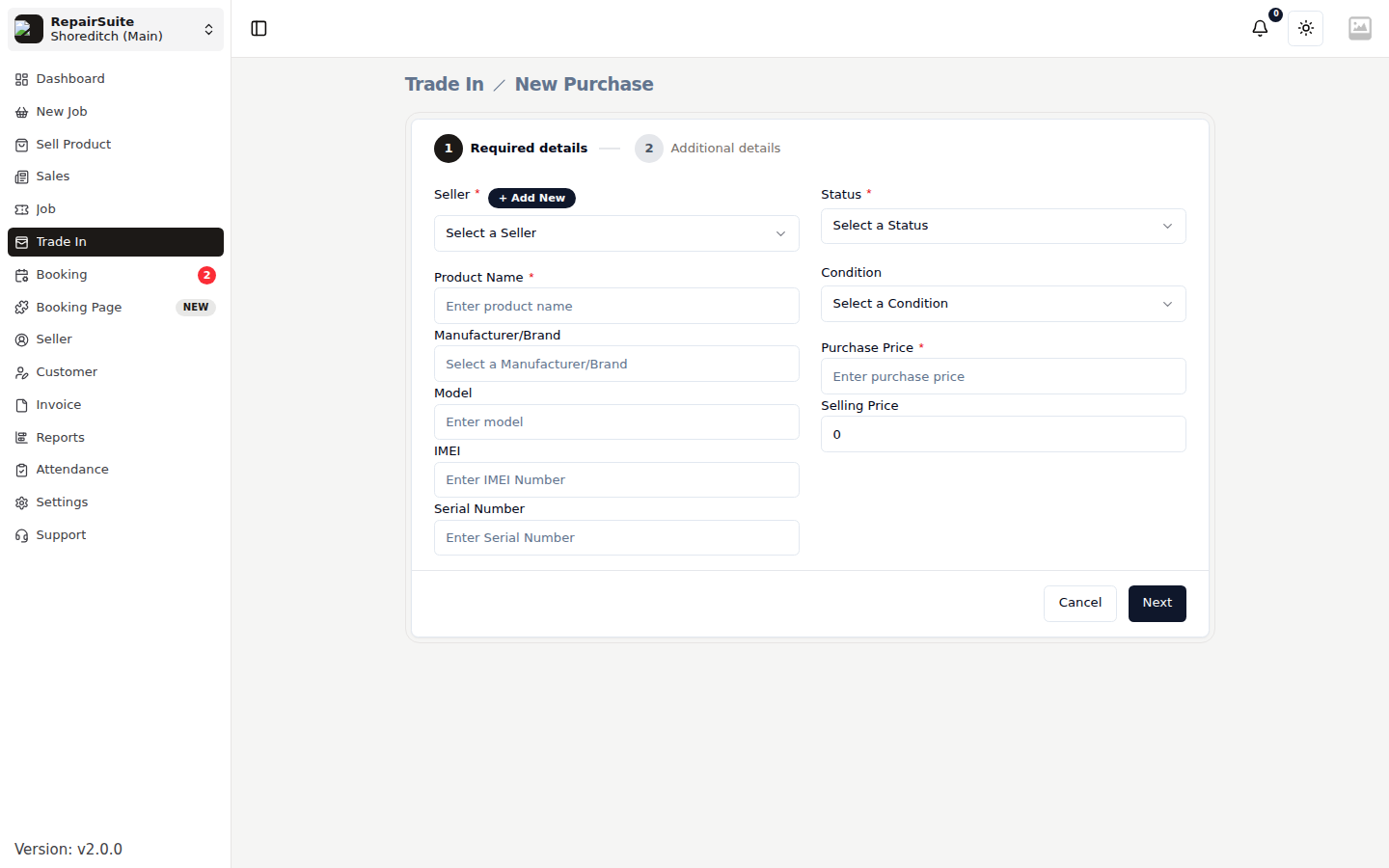
Step 1 — Device and seller
| Field | Description |
|---|---|
| Seller | Pick an existing seller or add one inline |
| Product name | e.g. iPhone 13 Pro |
| Manufacturer / Model | Brand and model reference |
| IMEI / Serial number | Device identity |
| Storage, RAM, Colour, Network, OS version | Specification |
Step 2 — Condition and price
| Field | Description |
|---|---|
| Condition | New, Used, Fair, Good or Damage |
| Screen condition | No damage, minor scratch or cracked |
| Battery health | Percentage as reported by the device |
| Face ID / Fingerprint | Whether biometrics work |
| Factory reset / Accounts removed | The two checks that matter most for resale |
| Fault | Anything found during testing |
| Purchase price | What you are paying the seller |
| Sell price | What you intend to list it at |
| Physical location | Where the device is stored |
| Files | Photos of the device and the seller's ID |
:::warning Always confirm factory reset and accounts removed before paying. A device still locked to someone else's account cannot be resold. :::
Acknowledgement and signature
Before the purchase is finalised, the seller acknowledges your buying terms:
- Open the trade-in record
- Click Acknowledgement
- Show the seller the terms from Sales Policy
- Capture their signature on the signature pad
- Submit
The signature is stored against the record along with the ID details.
Trade purchase invoice
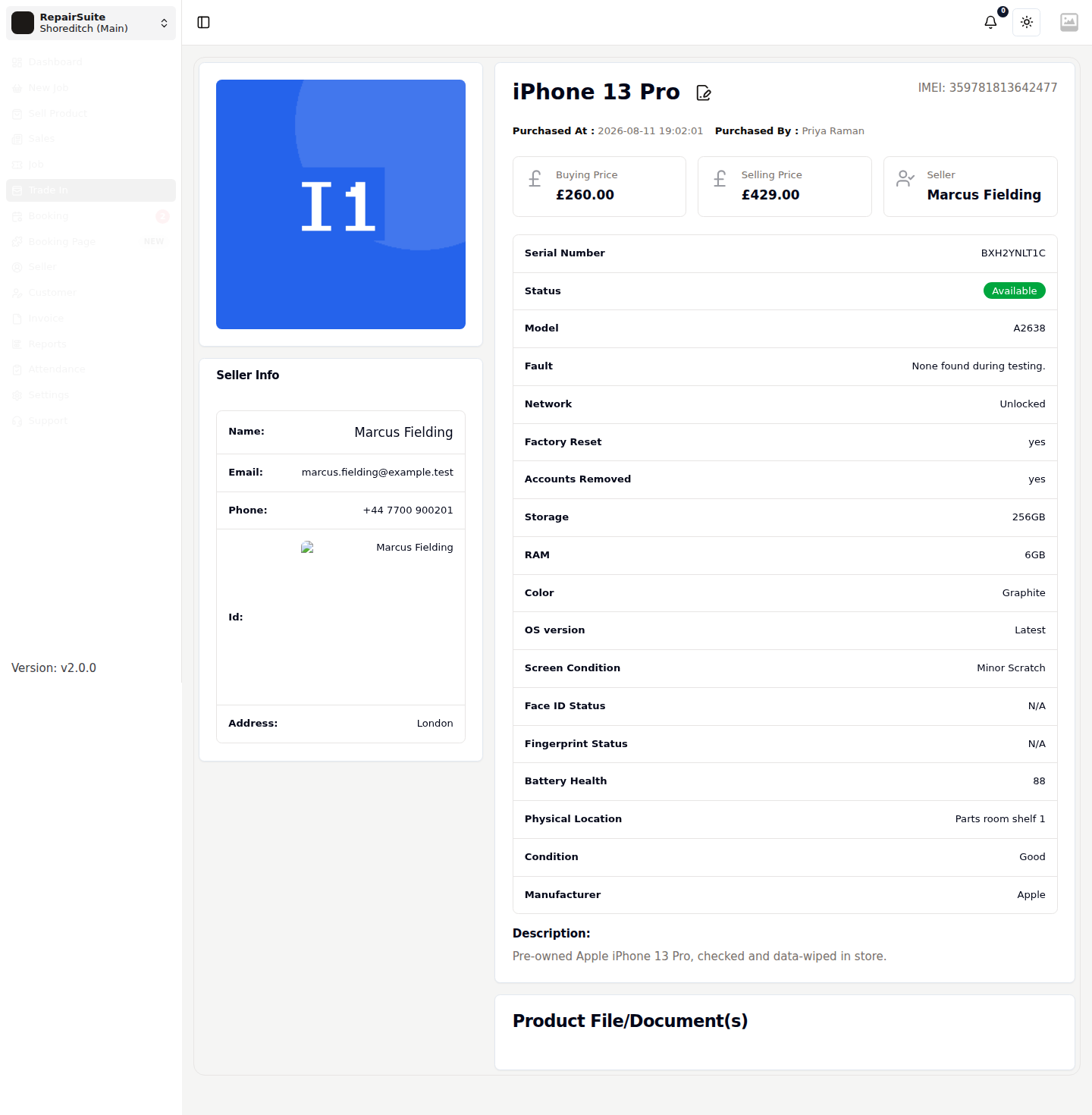
Every trade purchase produces a buy invoice showing what you paid. Open the record and click Invoice to view, print or download it for the seller.
Selling a device (Trade Sale)
Click Trade Sale to open the trade-in point of sale.
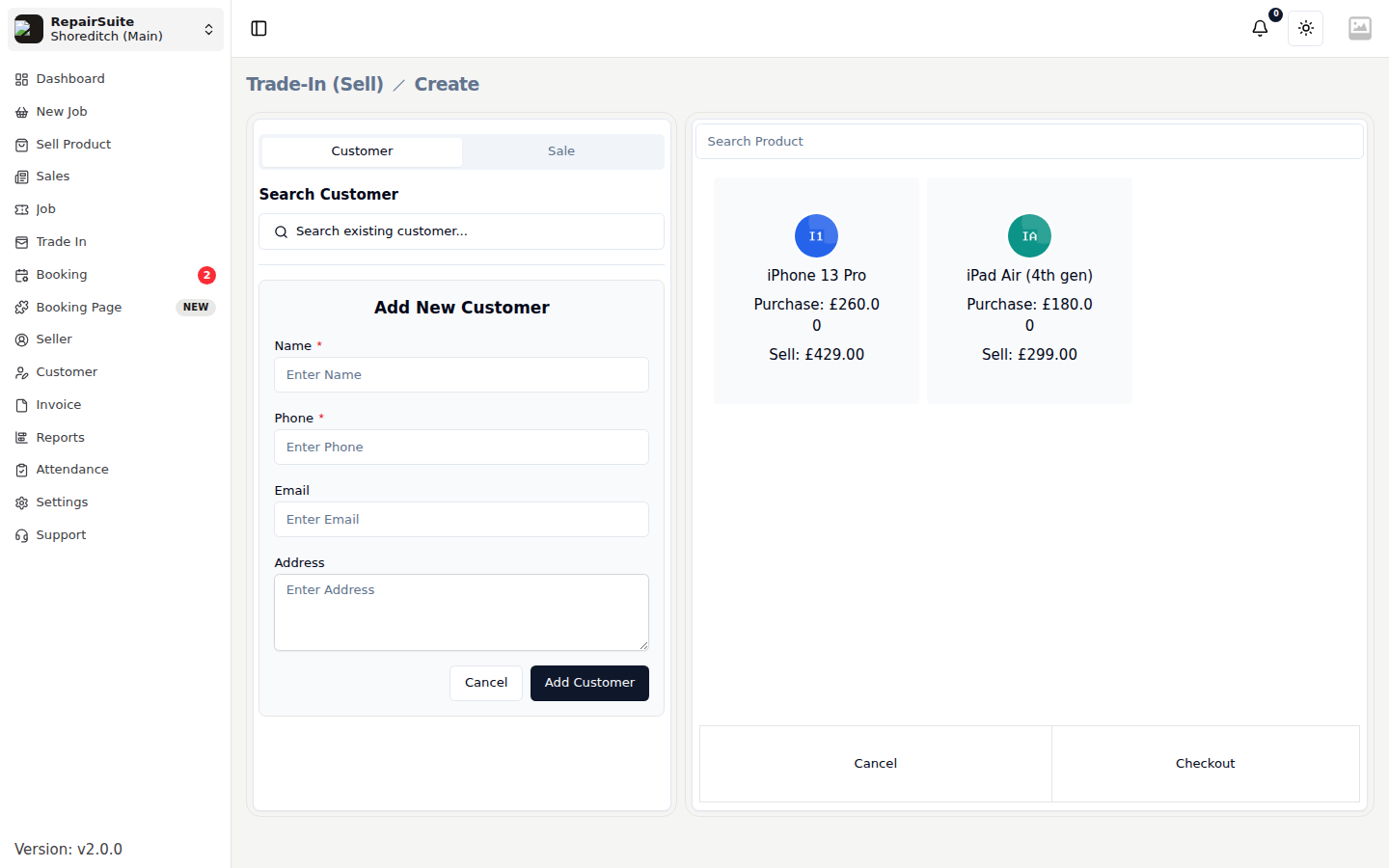
- Pick the device from the list of Available stock
- Attach a customer, or add one inline
- Set the price, any discount and the payment method
- Complete the sale
The device flips to Sold, and a sale invoice is generated. Sold devices stay in the list for your records, and they feed the Trade-In slice of the dashboard's Revenue by Source widget.
Related
- Sellers — the people you buy from, and their ID records
- Sales Policy — the terms shown at acknowledgement
- Menu Settings — hide Trade In if your shop doesn't buy devices