Invoices
RepairSuite raises an invoice for every repair job, every counter sale and every trade-in. The Invoice module is where you find them, take payment and produce a PDF.
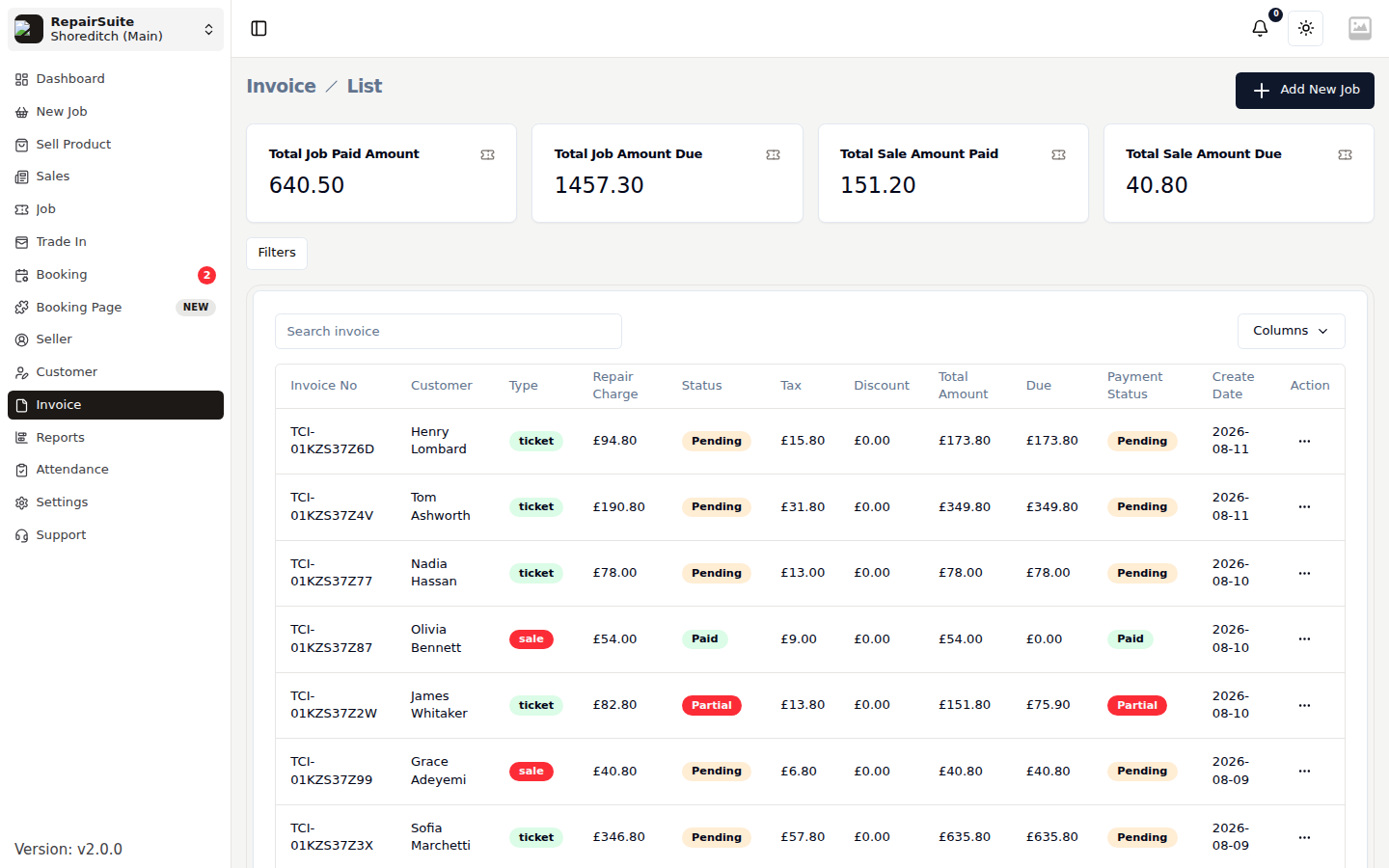
Where invoices come from
| Type | Raised by | Reached from |
|---|---|---|
| Job invoice | A repair job | The job's Invoice action, or /invoice |
| Sale invoice | The Sell Product POS | The sale, or /sell/invoice/{id} |
| Trade-in invoice | A trade purchase or sale | The trade-in record's Invoice action |
The list
Select Invoice in the sidebar. Filter by payment status or date range, and search by invoice number or customer name.
| Payment status | Meaning |
|---|---|
| Pending | Nothing collected yet |
| Partial | Some money in, a balance outstanding |
| Paid | Settled in full |
| Cancelled | Voided |
Invoice detail
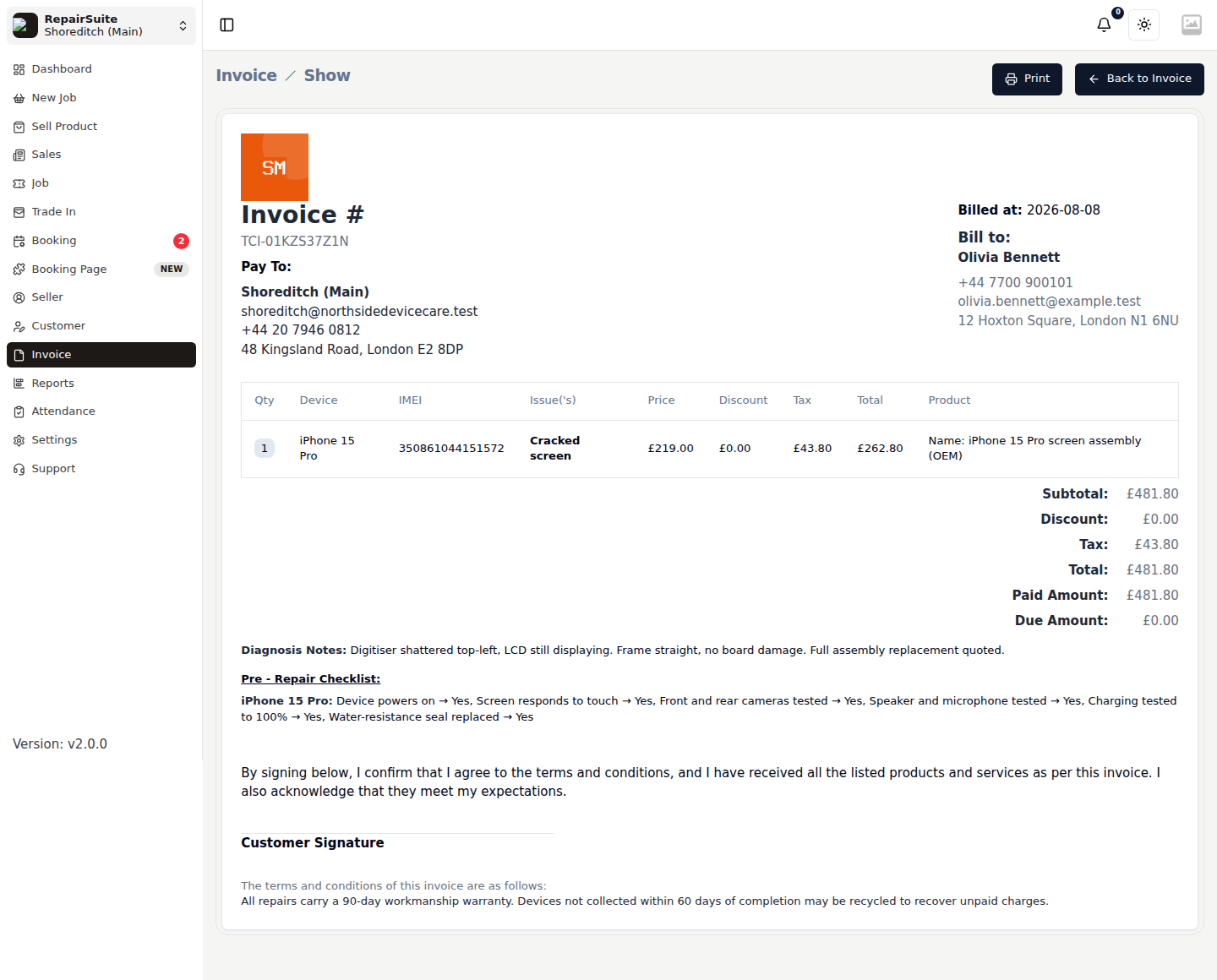
An invoice shows:
- Invoice number and date
- Your shop and branch details, with your logo
- The customer
- Line items — labour and any parts used
- Discount and tax
- Total, amount paid and balance due
- The payment history, one row per collection
Collecting payment
- Open the invoice
- Click Collect Payment
- Enter the amount the customer is paying now and the payment method — cash, card or bank transfer
- Add a comment if it helps (for example "deposit against parts order")
- Save
The status updates itself: part of the balance moves the invoice to Partial, the rest of it to Paid.
:::tip Take a deposit at drop-off and the balance on collection. Both collections are recorded separately in the payment history, so the trail is clear. :::
Downloading a PDF
Download produces a PDF carrying your logo, the invoice detail and your Job Policy terms. Give it to the customer as a receipt, or email it on.
From the job
Open a job and click Invoice to go straight to its invoice — no need to search the list.
Related
- Job Lifecycle — where payment sits in the flow
- Sell Product & Sales — sale invoices
- Reports — reconciliation and outstanding balances