Customers
The Customer module holds the customer database for your branch. Every repair job and every invoice is linked to a customer.
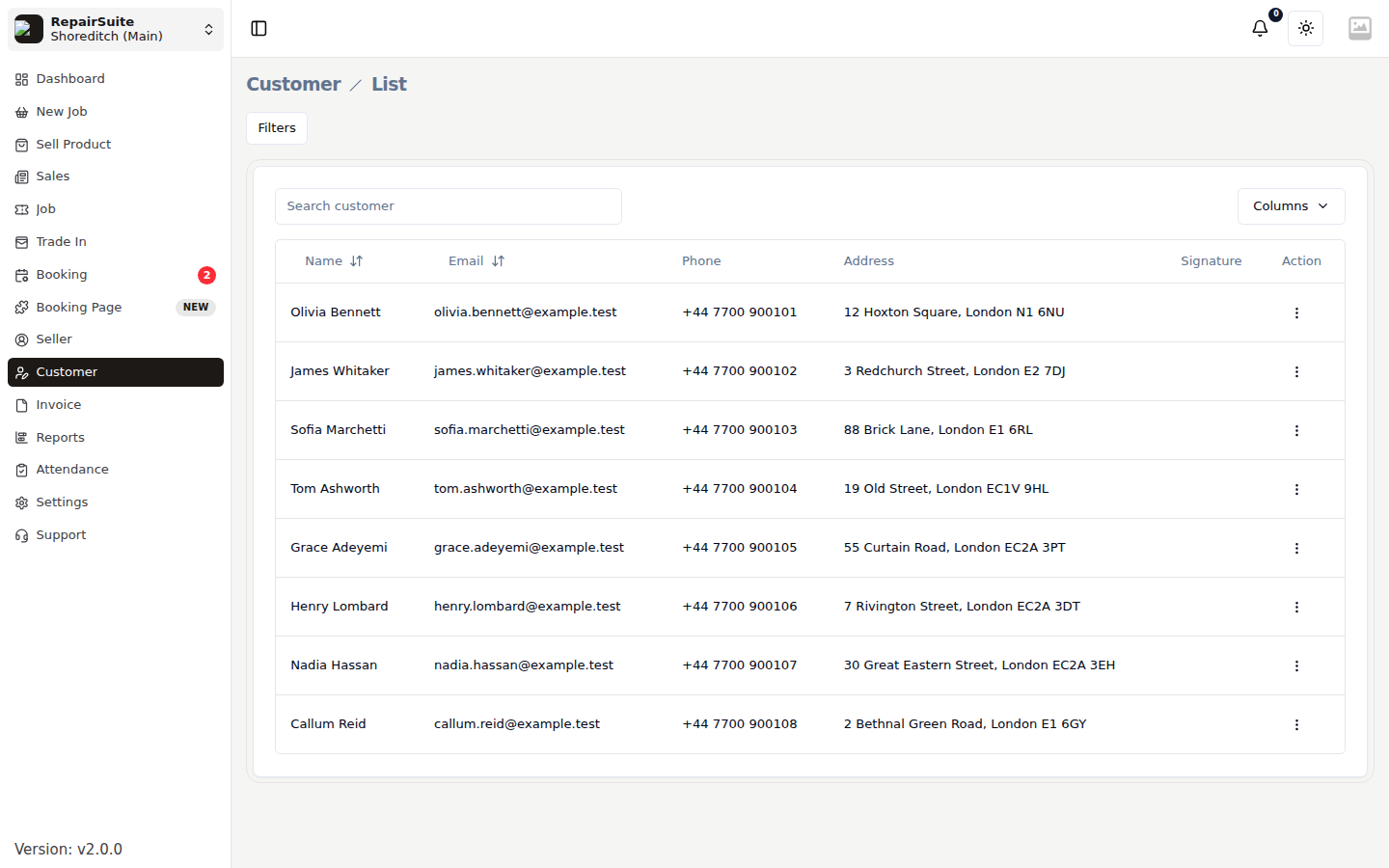
Viewing Customers
Select Customer in the sidebar (or go to /customer-list) to see every customer at the branch you are working in.
You can:
- Search by name, phone, or email
- Sort by different columns
Customer Profile
Click any customer to view their full profile.
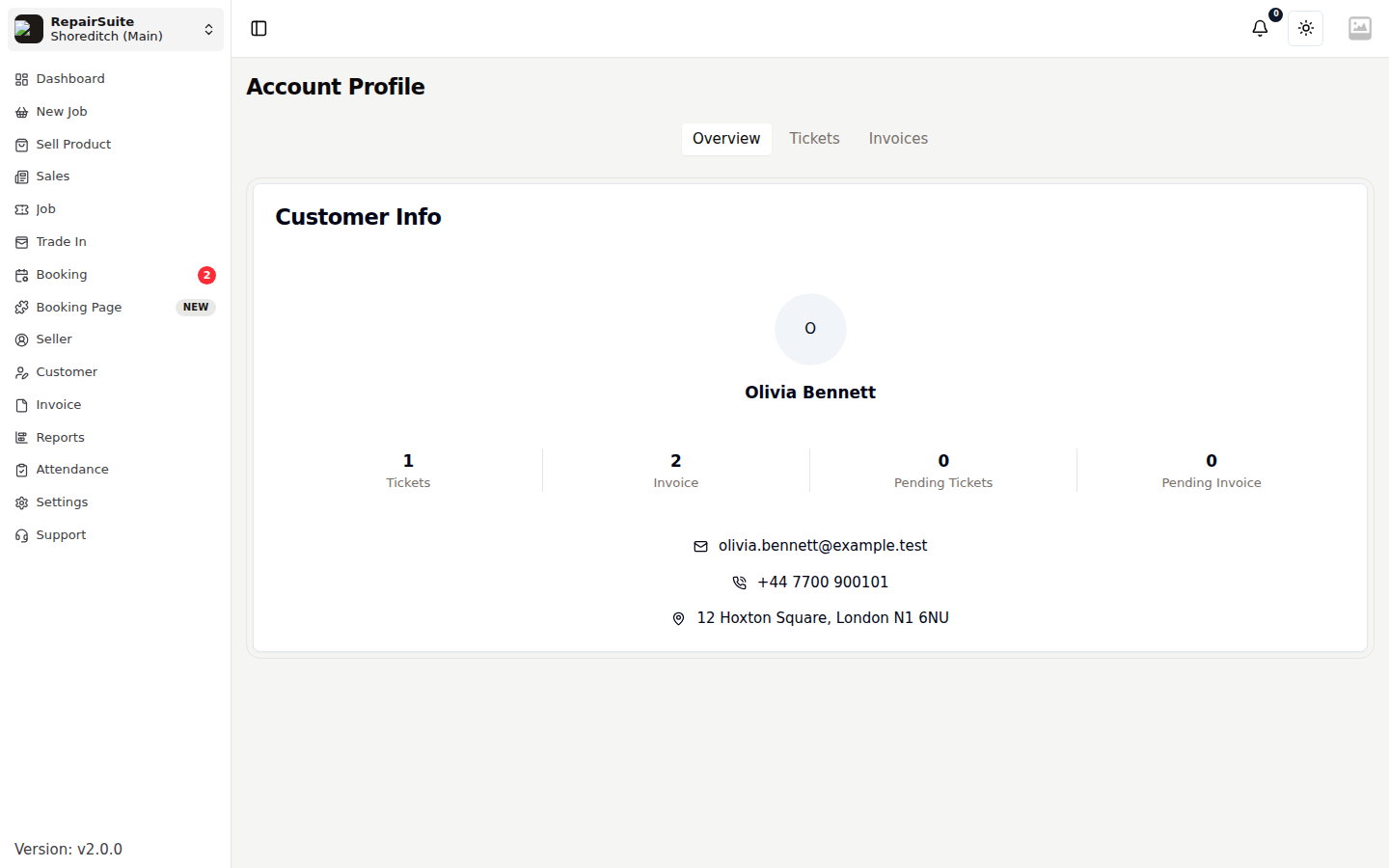
The profile shows:
- Contact details — name, phone, email and address
- Counters for total jobs, open jobs, total invoices and unpaid invoices
- Every job for this customer
- Every invoice for this customer
Adding a New Customer
From the job wizard
Most customers are added as you book a device in — the Details step of the New Job wizard has an Add new customer option that creates and selects them without leaving the wizard. The Sell Product POS has the same control.
Manually
- From the Customer list, click Add Customer
- Fill in:
- Full Name
- Phone Number
- Email Address (optional but recommended — used for notifications)
- Address (optional)
- Click Save
Editing a Customer
- Open the customer profile
- Click Edit
- Update their details
- Save
Job and invoice history
The customer profile carries their full history with your branch — every job, and every invoice with its payment status. It is the fastest way to answer "have we had this device in before?"
Customer Portal Access
If a customer registers on the platform (at /register/customer), they gain access to the Customer Portal where they can:
- Follow their own jobs and their status
- View and download invoices
- Submit booking requests
The customer account is linked to their email address.