Booking Requests (Customer)
A customer with a portal account can book a repair without calling the shop, and follow the request from the same place.
Their bookings
Select Booking Request in the portal sidebar.
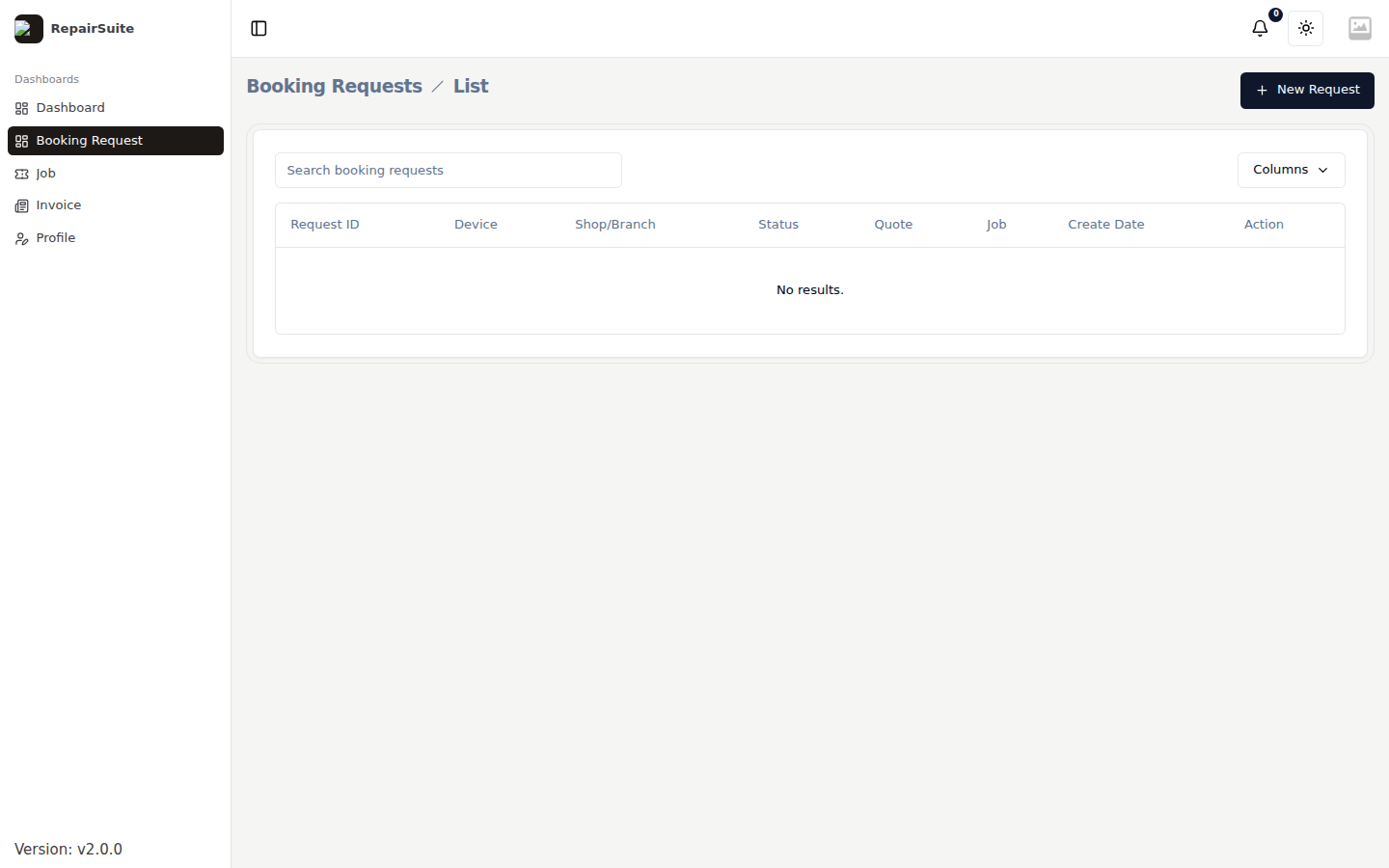
Each row shows the reference, the device, the preferred date and the current status.
Making a booking
Click New Booking Request.
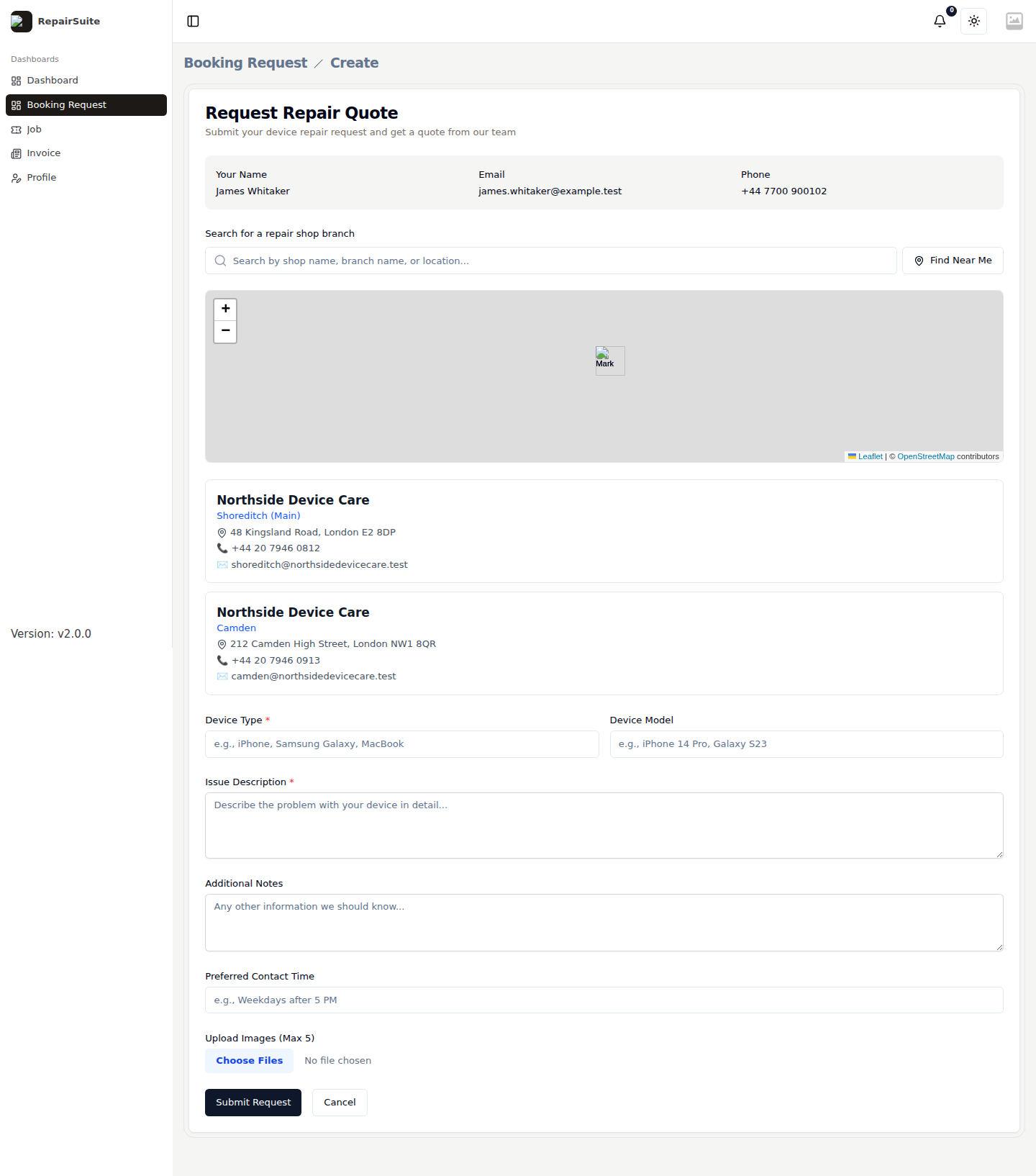
The form walks through:
- Shop and branch — search for the shop, then pick the branch
- Service — the type of work, scoped to that branch
- Device — type and model
- Issue — a description of what is wrong, with optional photos
- When — preferred date and time, and when it suits to be contacted
- Review — check and submit
Validation is shown inline on the field that needs attention, and returns the customer to the step it belongs to.
Tracking a booking
| Status | What it means |
|---|---|
| Pending | The shop has not responded yet |
| Quoted | The shop has sent back a price |
| Confirmed | The appointment is agreed — bring the device in |
| Completed | The work is finished |
| Cancelled | Declined, or cancelled by the customer |
Customers can cancel their own request while it is still pending.
Booking without an account
The same journey is available to anyone at your public booking page — no account needed. Portal bookings simply keep everything in one history.