Online Booking
Every shop gets a branded public booking page at its own handle, /book/your-shop. Customers describe the fault, pick a time and submit — no account, no login.
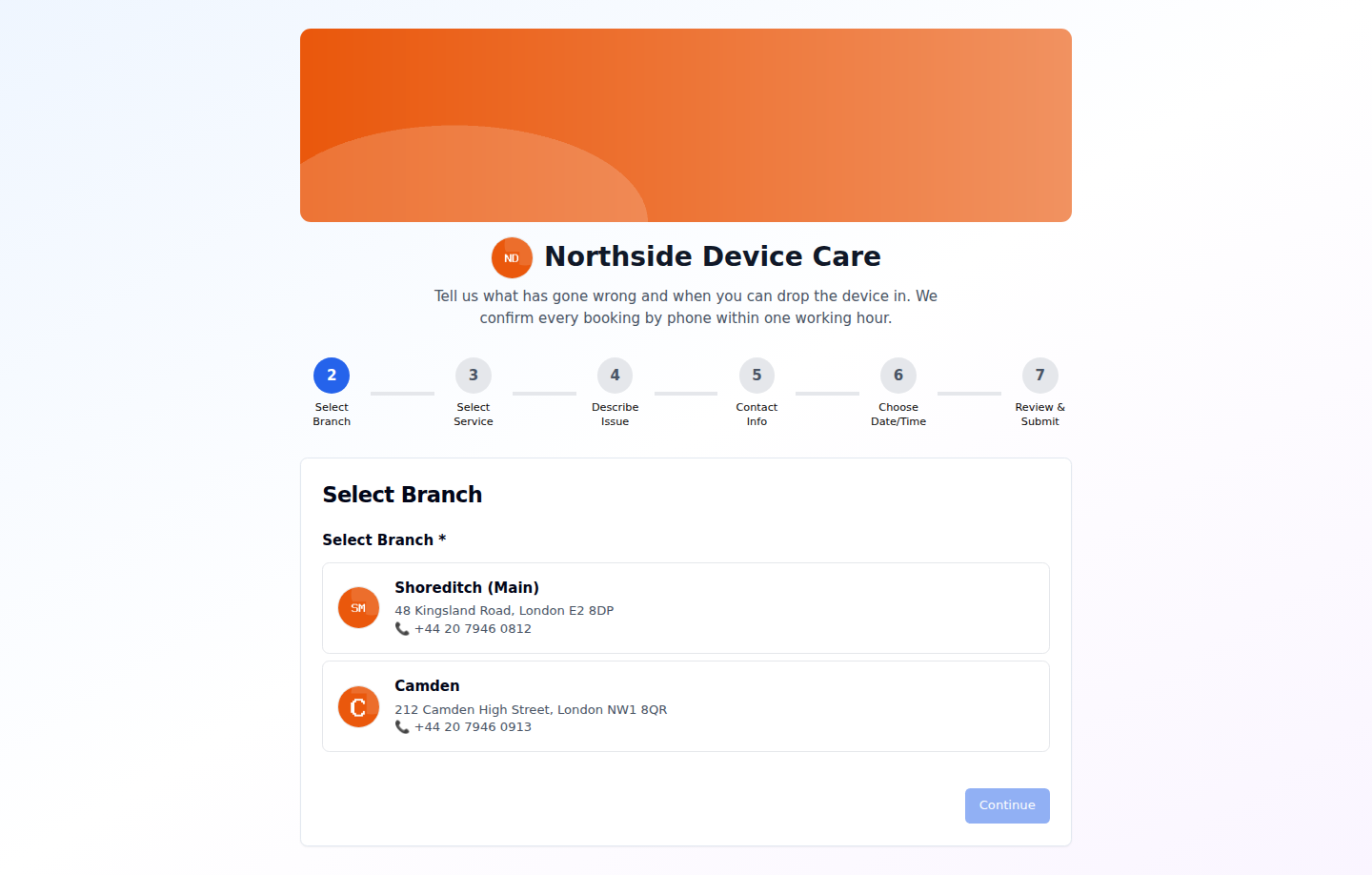
The page carries your banner, your logo, your accent colour and your booking instructions. Set all of that up in Booking Page & Widget, where you will also find the code to embed the same form on your own website.
The steps
| Step | What the customer does |
|---|---|
| 1. Select Shop | Search for the shop — skipped when they arrive on your own /book/your-shop link or your embedded widget |
| 2. Select Branch | Pick a location, with its address and phone shown |
| 3. Select Service | Choose the kind of work, scoped to the branch they picked |
| 4. Describe Issue | Device type, model and what has gone wrong, with optional photos |
| 5. Contact Info | Name, phone and email, plus when it suits them to be contacted |
| 6. Choose Date/Time | Preferred date and time, or a time slot if the branch requires one |
| 7. Review & Submit | Check everything and send it |
Validation is inline: an invalid field is flagged where it lives, and the wizard returns the customer to the step it belongs to rather than firing a toast.
:::note A branch only appears at step 2 when the shop has online booking on, the branch has Accept Online Bookings on, and the branch is Active. See Branch Settings. :::
After submitting
The customer gets a booking reference, and the request lands in your Booking Requests queue with a badge on your sidebar and a notification to the shop owner.
Tracking a booking
Customers can follow their request at /booking/{reference} — again without an account.
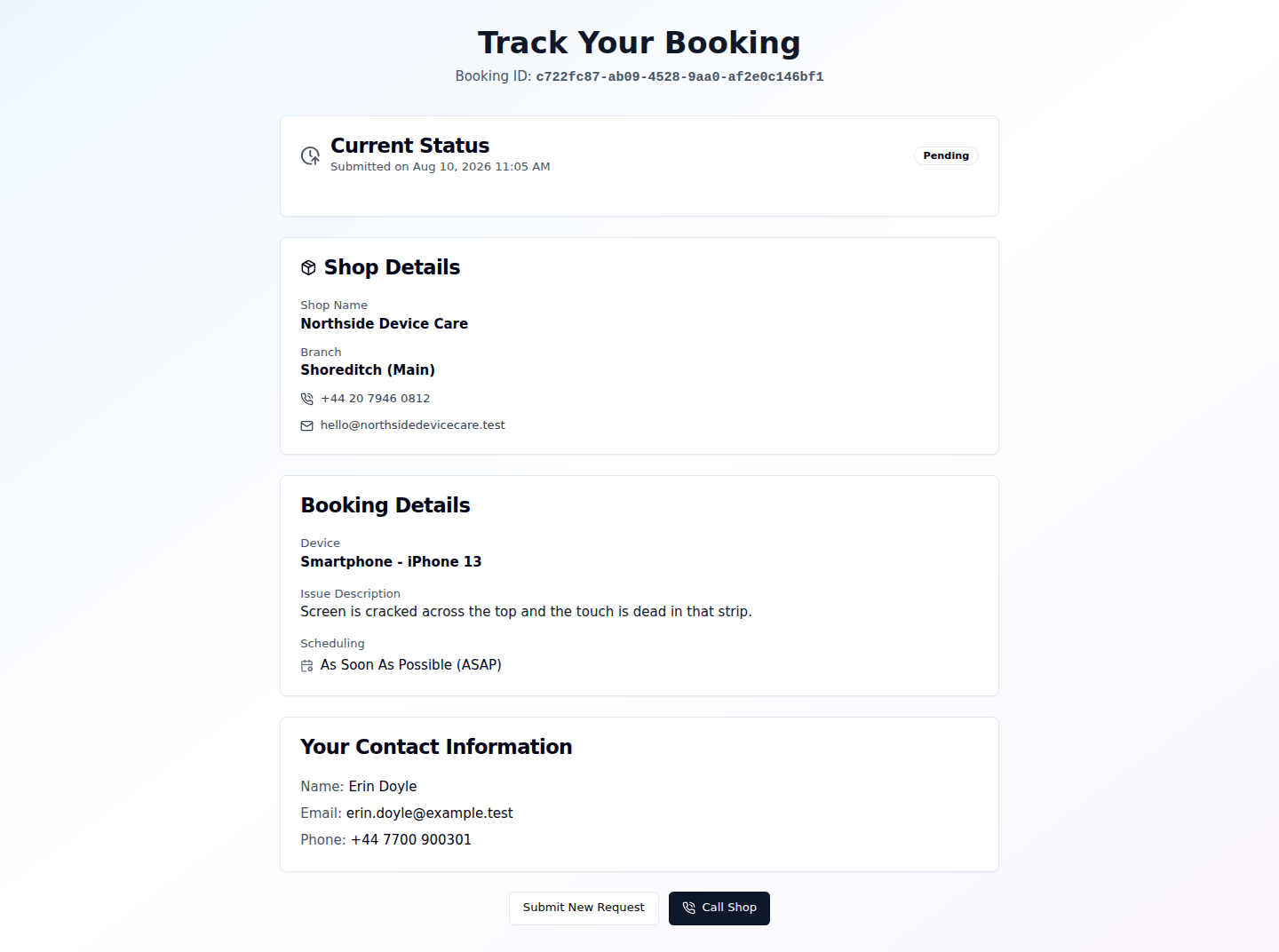
They see the status — Pending, Quoted, Confirmed, Completed or Cancelled — along with what they submitted and which branch it went to.
Embedding on your own site
The same form can be embedded on your website with a Shadow-DOM SDK snippet or a simple iframe. Both are generated for you with copy buttons in Booking Page & Widget.