Booking Page & Widget
Booking Page is where you switch online booking on, style the page customers see, and copy the code that puts your booking form on your own website. Find it in the sidebar under Booking Page, or at /settings/booking-page.
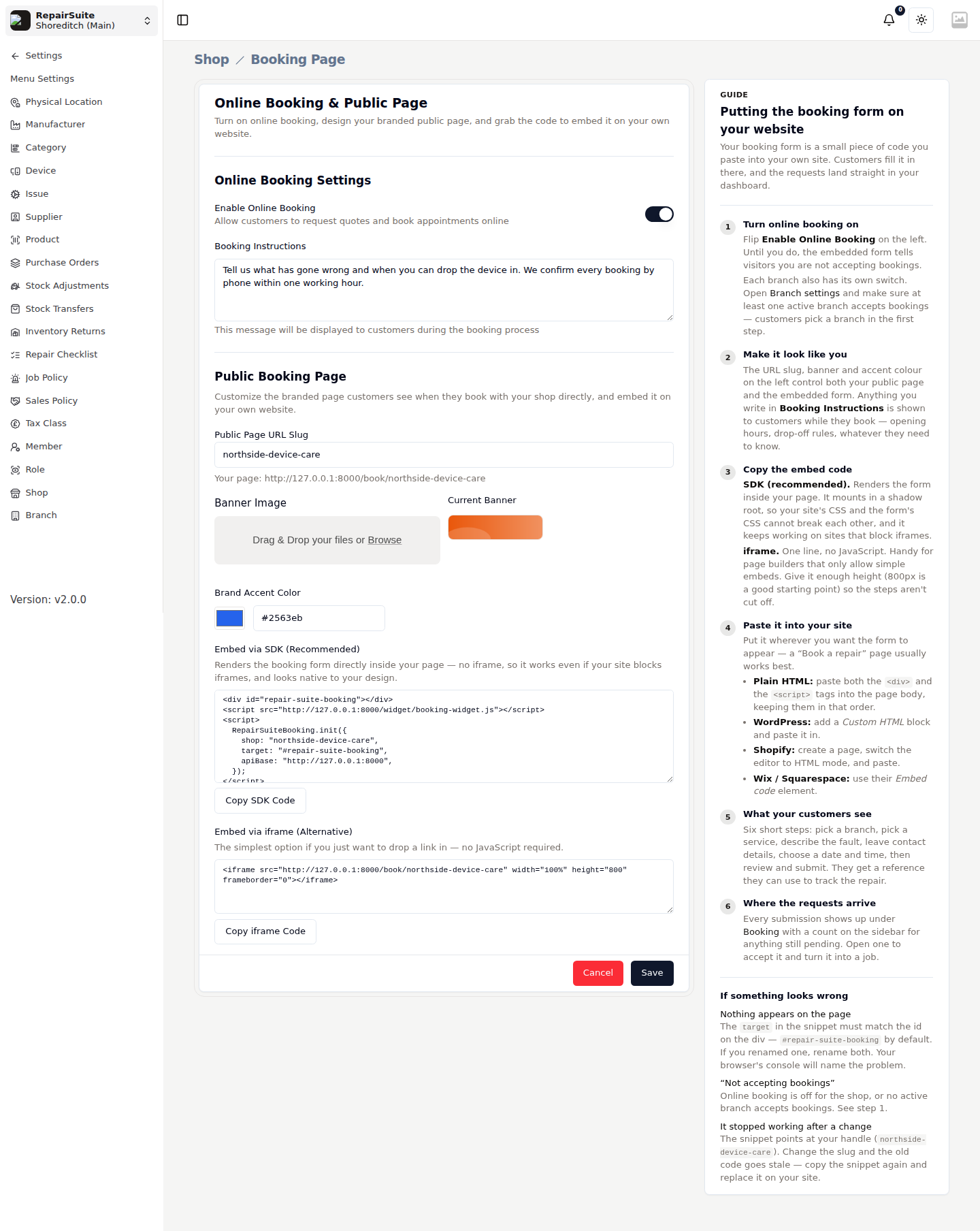
Only the shop owner can edit this screen.
Online Booking Settings
| Setting | What it does |
|---|---|
| Enable Online Booking | The master switch. While it is off, both your public page and any embedded form tell visitors you are not taking bookings. |
| Booking Instructions | Free text shown to customers as they book — opening hours, drop-off rules, anything they need to know. |
:::warning Each branch also has its own booking switch. Turn on Accepts bookings for at least one active branch under Branch Settings, or customers will have nothing to pick in the first step. :::
Public Booking Page
| Setting | What it does |
|---|---|
| Public Page URL Slug | The handle in your page address, /book/your-slug. Changing it invalidates any embed code you have already pasted elsewhere. |
| Banner Image | The header image on your public page. |
| Brand Accent Color | The accent colour used across the page and the embedded form. |
The slug field shows the finished URL underneath, ready to share or link from your website's navigation.
Embedding the form on your site
Two snippets are generated for you, each with a copy button.
SDK — recommended
<div id="repair-suite-booking"></div>
<script src="https://app.repairsuite.co.uk/widget/booking-widget.js"></script>
<script>
  RepairSuiteBooking.init({
    shop: "your-slug",
    target: "#repair-suite-booking",
    apiBase: "https://app.repairsuite.co.uk",
  });
</script>
The SDK renders the booking form directly inside your page. It mounts in a shadow root, so your site's CSS and the form's CSS cannot break each other, and it keeps working on sites that block iframes.
iframe — the simple alternative
<iframe src="https://app.repairsuite.co.uk/book/your-slug" width="100%" height="800" frameborder="0"></iframe>
One line, no JavaScript. Useful for page builders that only allow simple embeds. Give it enough height — 800px is a sensible starting point — so the steps aren't cut off.
Pasting it in
| Platform | How |
|---|---|
| Plain HTML | Paste both the <div> and the <script> tags into the page body, in that order |
| WordPress | Add a Custom HTML block and paste into it |
| Shopify | Create a page, switch the editor to HTML mode, and paste |
| Wix / Squarespace | Use their Embed code element |
A "Book a repair" page usually works best.
What customers see
Six short steps: pick a branch, pick a service, describe the fault, leave contact details, choose a date and time, then review and submit. They get a reference they can use to track the repair. See Public Booking.
Where the requests arrive
Every submission lands under Booking in the sidebar, with a badge showing how many are still pending, and the shop owner gets a notification. Open one to accept it and turn it into a job — see Booking Requests.
If something looks wrong
| Symptom | Cause |
|---|---|
| Nothing appears on the page | The target in the snippet must match the id on the div — #repair-suite-booking by default. If you renamed one, rename both. The browser console will name the problem. |
| "Not accepting bookings" | Online booking is off for the shop, or no active branch accepts bookings. |
| It stopped working after a change | The snippet points at your slug. Change the slug and the old code goes stale — copy the snippet again and replace it on your site. |