Booking Requests
Booking Requests is the queue of repair appointments people have asked for online — from your public booking page, from the booking widget embedded on your own website, or from the customer portal.
Select Booking in the sidebar. The badge next to it counts requests still waiting for a response.
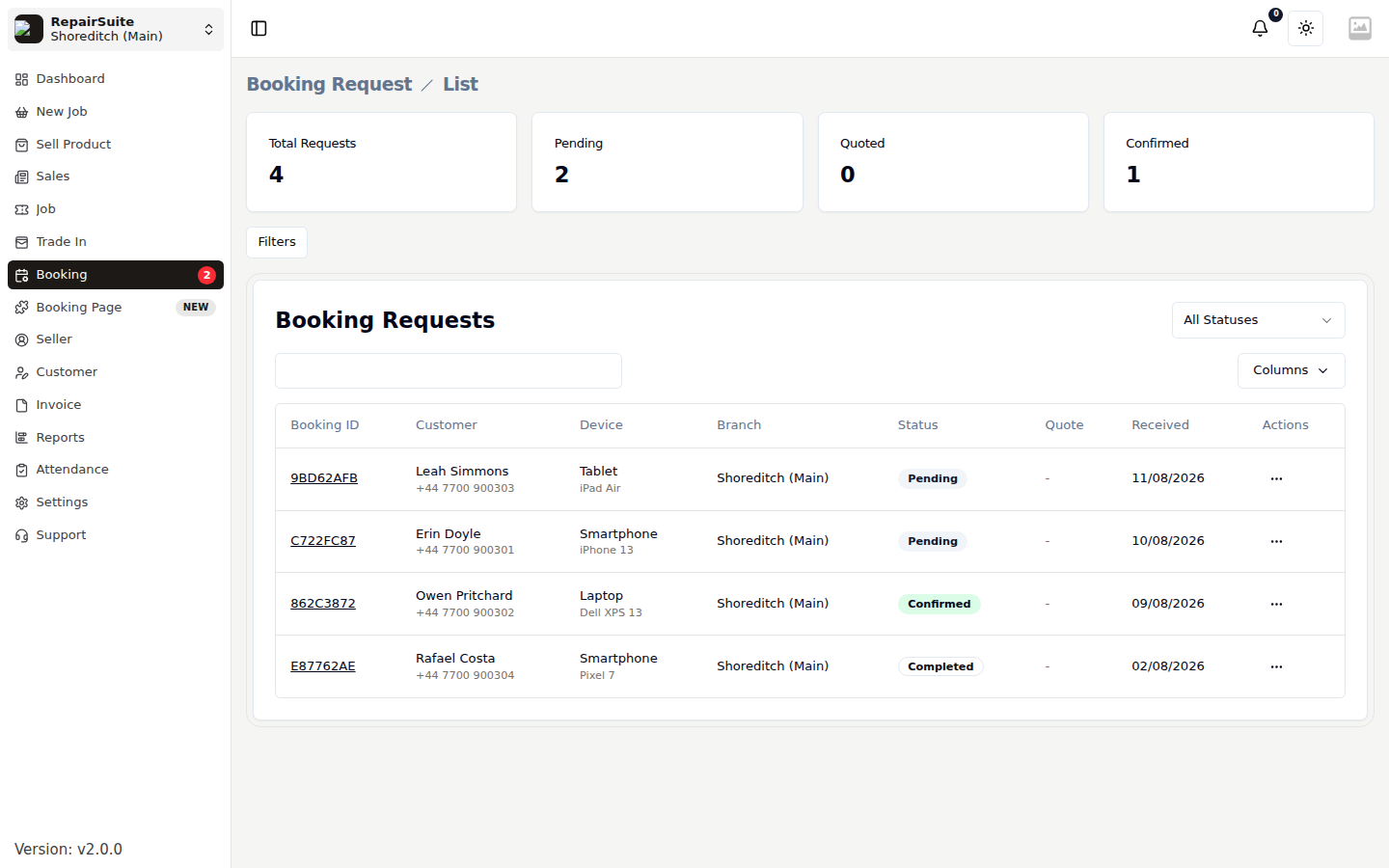
The queue
Four counters sit above the list — Total Requests, Pending, Quoted and Confirmed — followed by the requests themselves:
| Column | What it shows |
|---|---|
| Booking ID | Short reference the customer also has |
| Customer | Name and phone from the form |
| Device | Device type and model |
| Branch | Which branch they picked |
| Status | Where the request has got to |
| Quote | The price you quoted, if any |
| Received | When it came in |
Use All Statuses and Filters to narrow the list.
Request details
Open a request to see everything the customer submitted.
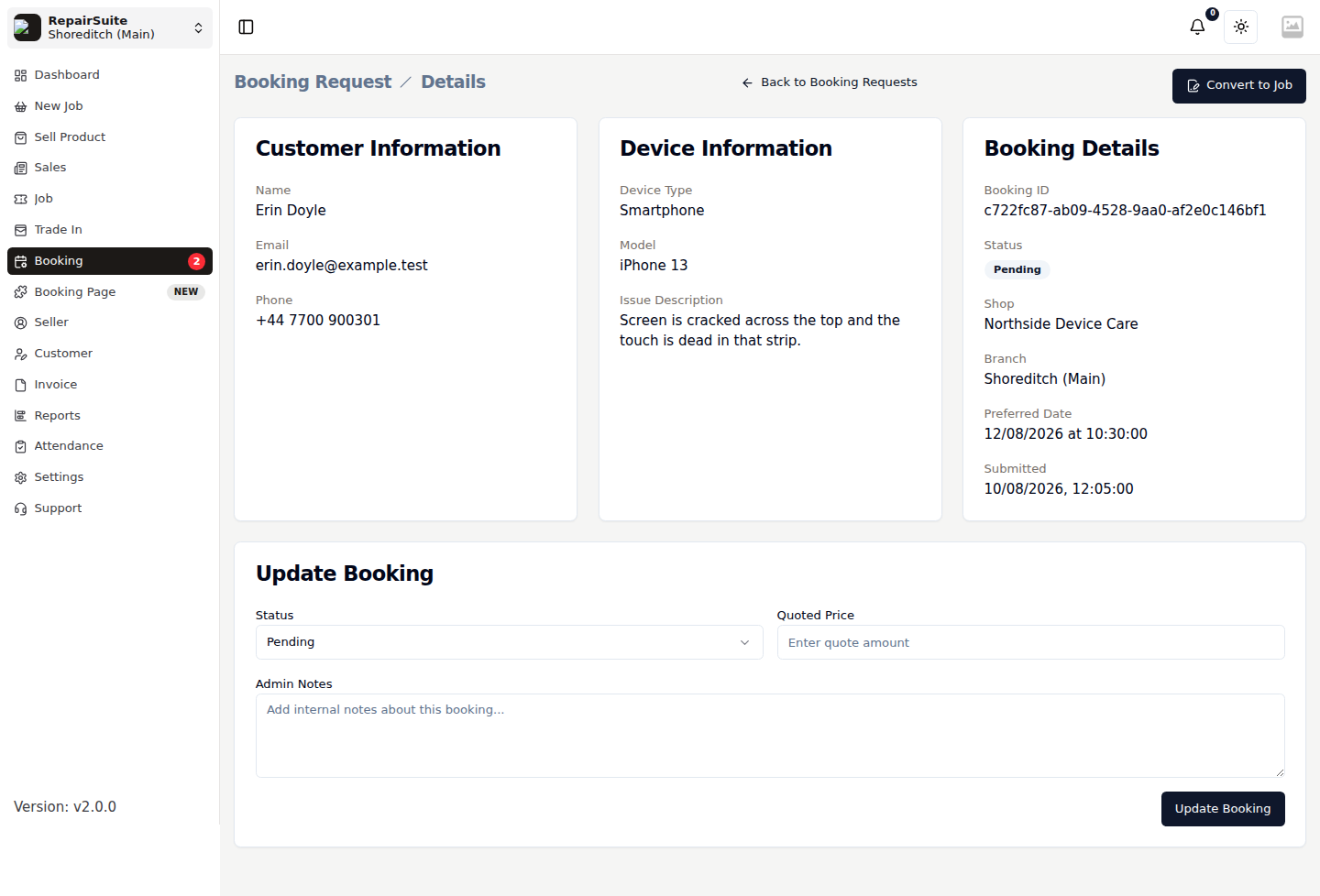
| Field | Description |
|---|---|
| Customer name, phone, email | Contact details from the form |
| Device type and model | What they are bringing in |
| Issue description | The fault, in their words |
| Photos | Any images they attached |
| Preferred date and time | When they would like to come in |
| Preferred contact time | When it suits them to be called |
| Estimated / quoted price | Your indication of cost |
| Admin notes | Internal notes, not shown to the customer |
Statuses
| Status | Meaning |
|---|---|
| Pending | Newly submitted, waiting on you |
| Quoted | You have sent a price back |
| Confirmed | The appointment is agreed |
| Completed | The work is finished |
| Cancelled | Declined, or the customer cancelled |
Working through a request
- Open the request and read the fault description
- Quote a price if the customer asked for one
- Confirm if you can take the work, or Cancel if you cannot
- When the device arrives, Convert to Job
Converting to a job
Convert to Job creates a repair job pre-filled from the booking — customer, device and fault — and links the two records, so the booking shows which job came out of it. Finish the remaining wizard steps (parts, charges, dates) and submit.
If the customer already has a job open, use Link Job instead to attach the booking to it.
:::tip Convert every confirmed booking when the device arrives. It keeps a clean trail from the original enquiry through to the invoice, and it stops the same request being handled twice. :::
Notifications
The shop owner gets a notification when a booking arrives, and the sidebar badge updates for everyone with the booking permission — so a request does not sit unnoticed.
Related
- Booking Page & Widget — turn booking on and embed the form
- Public Booking — what the customer sees
- Customer Booking Requests — booking from inside the portal