Purchase Orders
A purchase order is a formal order placed with a supplier. Receiving one adds the goods to your branch stock automatically, so your inventory stays honest without manual entry.
Go to Settings → Purchase Orders.
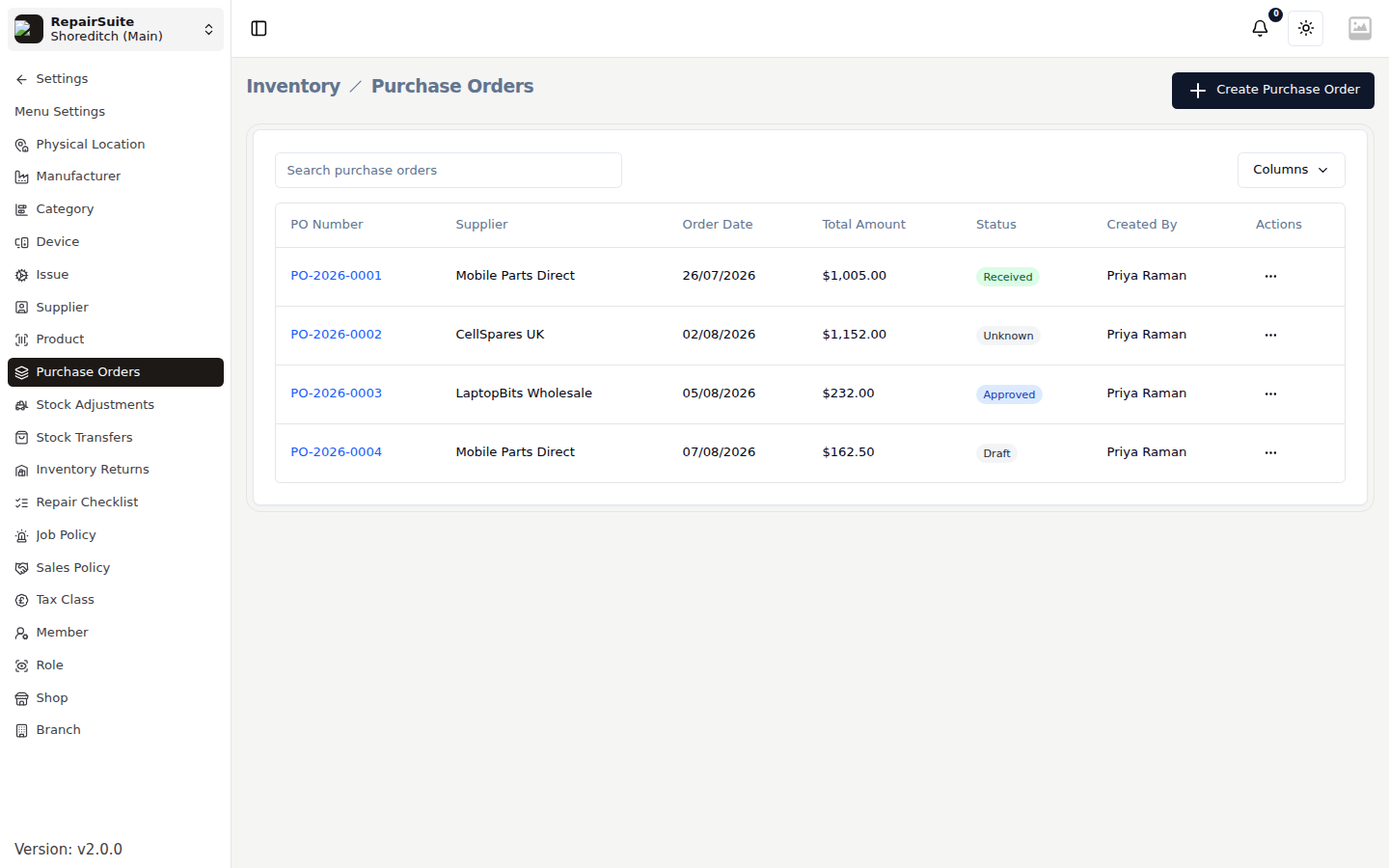
Statuses
| Status | Meaning |
|---|---|
| Draft | Created, not yet submitted |
| Submitted | Sent for approval |
| Approved | Approved, waiting on delivery |
| Partially Received | Some of the order has arrived |
| Received | Everything has arrived |
| Completed | Closed |
| Cancelled | Order cancelled, with a reason recorded |
Creating an order
Click New Purchase Order.
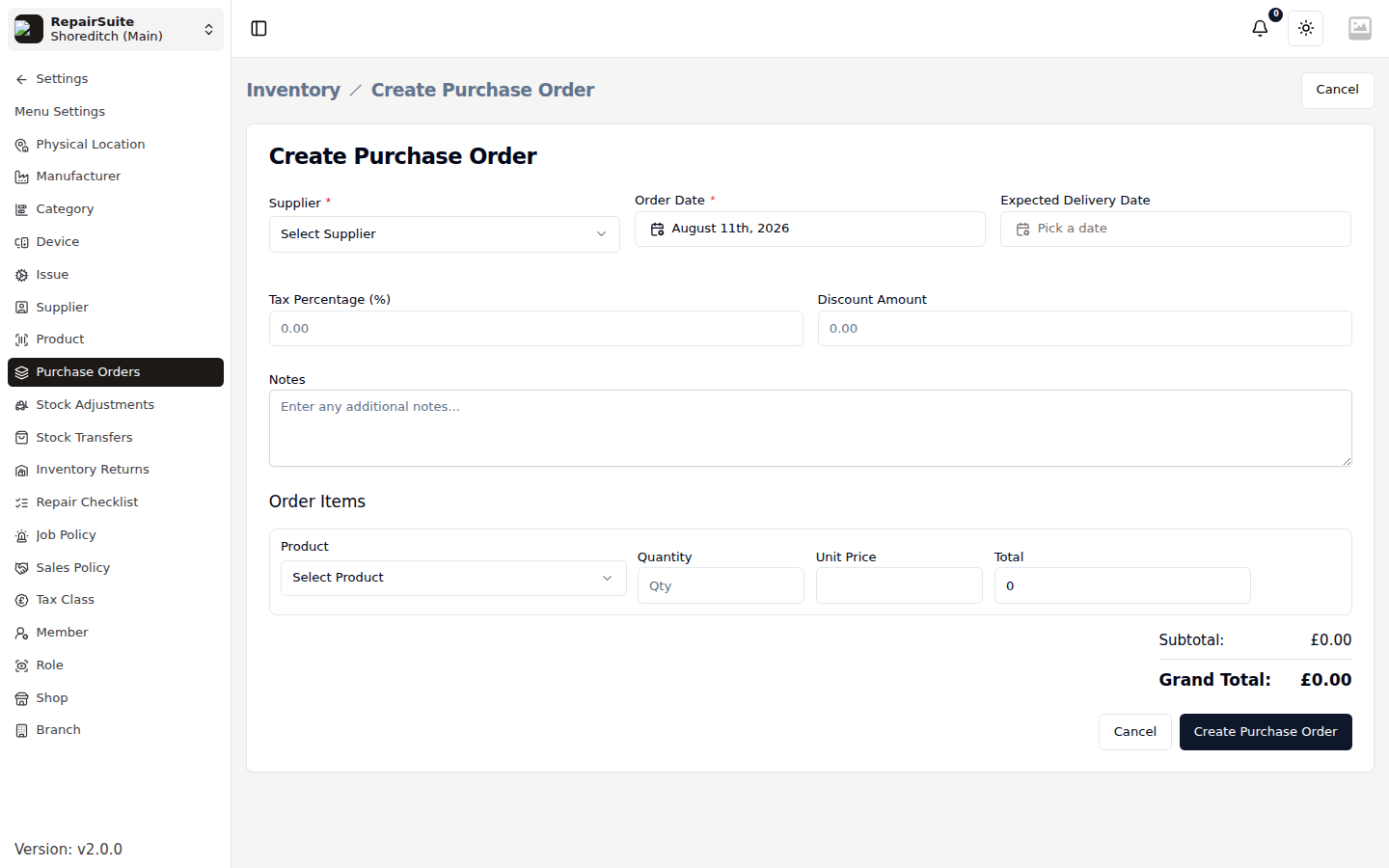
- Pick the Supplier
- Set the Order date and Expected delivery date
- Add notes and terms and conditions if you want them on the order
- Add line items — product, quantity, unit price, and any per-line tax or discount
- Save as Draft, or submit it
The subtotal, tax, discount and total are calculated as you add lines.
Approving
An order has to be approved before it can be received. Open it and click Approve. RepairSuite records who approved it and when.
:::tip In a small shop the same person creates and approves. In a larger one, keep the two on different roles so orders get a second pair of eyes — see Roles & Members. :::
Receiving
When the goods turn up:
- Open the approved order
- Click Receive
- Enter the quantity that actually arrived for each line — this can be less than you ordered
- Confirm
Stock goes up by the received quantity, and a stock movement is recorded against each product. If only part of the order arrived, the order moves to Partially Received and stays open, so you can receive the rest when it lands.
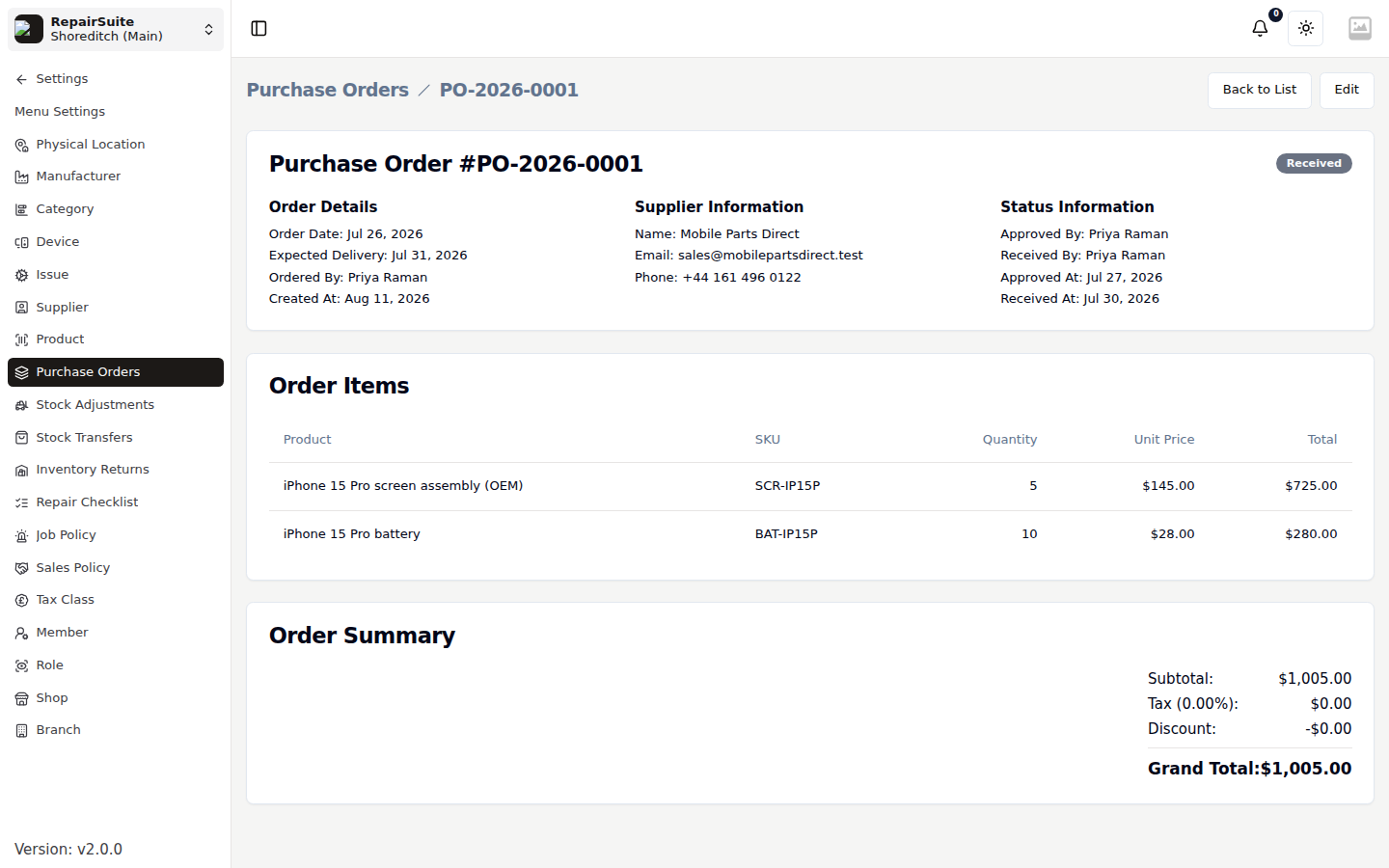
The detail page records the whole trail — who ordered, who approved, who received, and when.
Cancelling
Open a draft or submitted order and click Cancel. A cancellation reason is recorded on the order.
Exporting
Export on the purchase orders list downloads the current view as CSV.
Related
- Suppliers — who you order from
- Stock Overview — what receiving does to your stock
- Inventory Returns — sending faulty stock back