Stock Adjustments
A stock adjustment is a manual correction to a stock level. Use it when reality and the system disagree — after a stocktake, when something is damaged or lost, or when you are entering opening balances for a new branch.
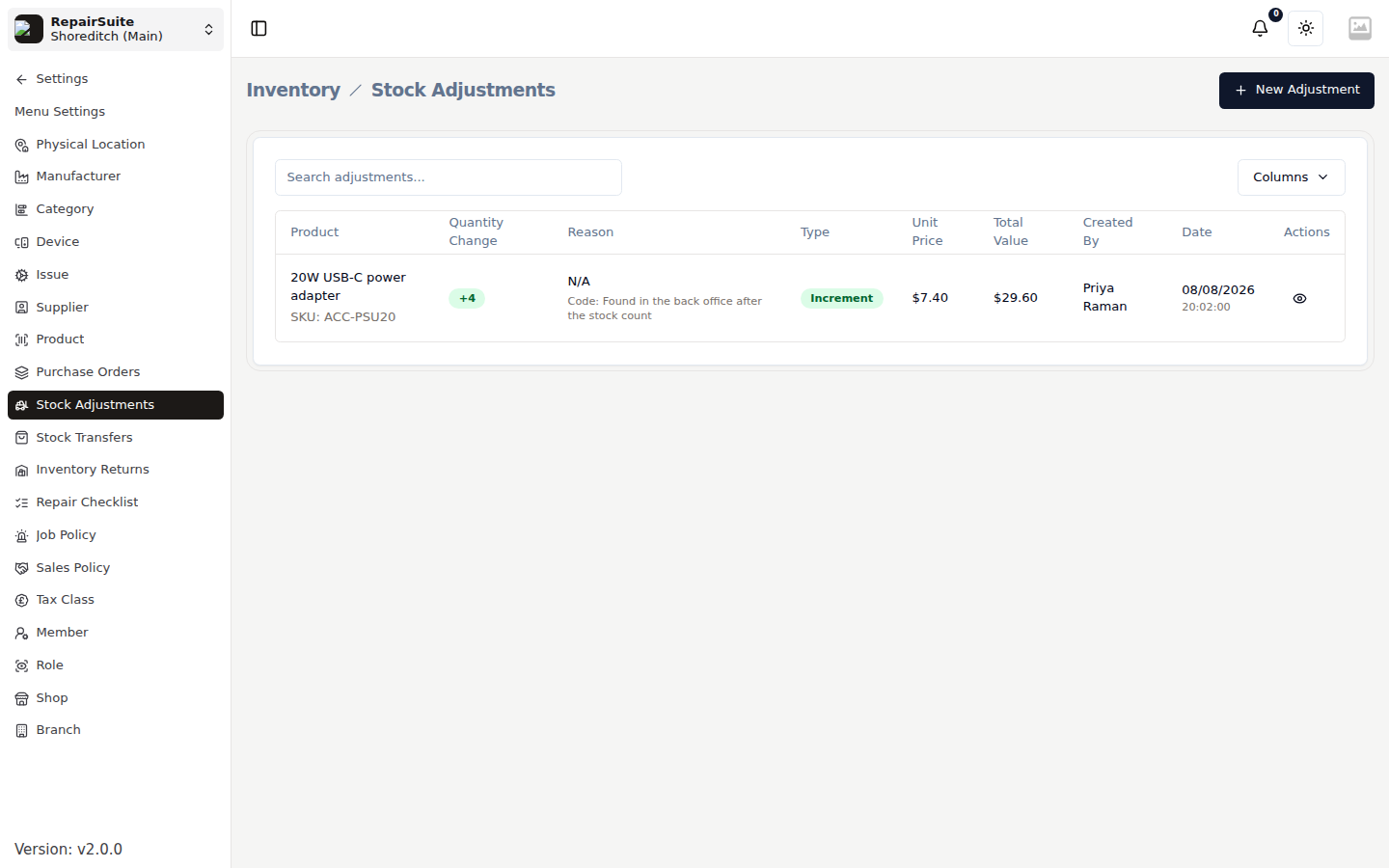
Go to Settings → Stock Adjustments.
When to use one
- A physical count does not match the system
- Stock is damaged and has to be written off
- You find stock that was never recorded
- You are loading opening balances into a new branch
For stock arriving from a supplier, use a purchase order instead — it captures the cost as well as the quantity.
Creating an adjustment
Click New Adjustment.
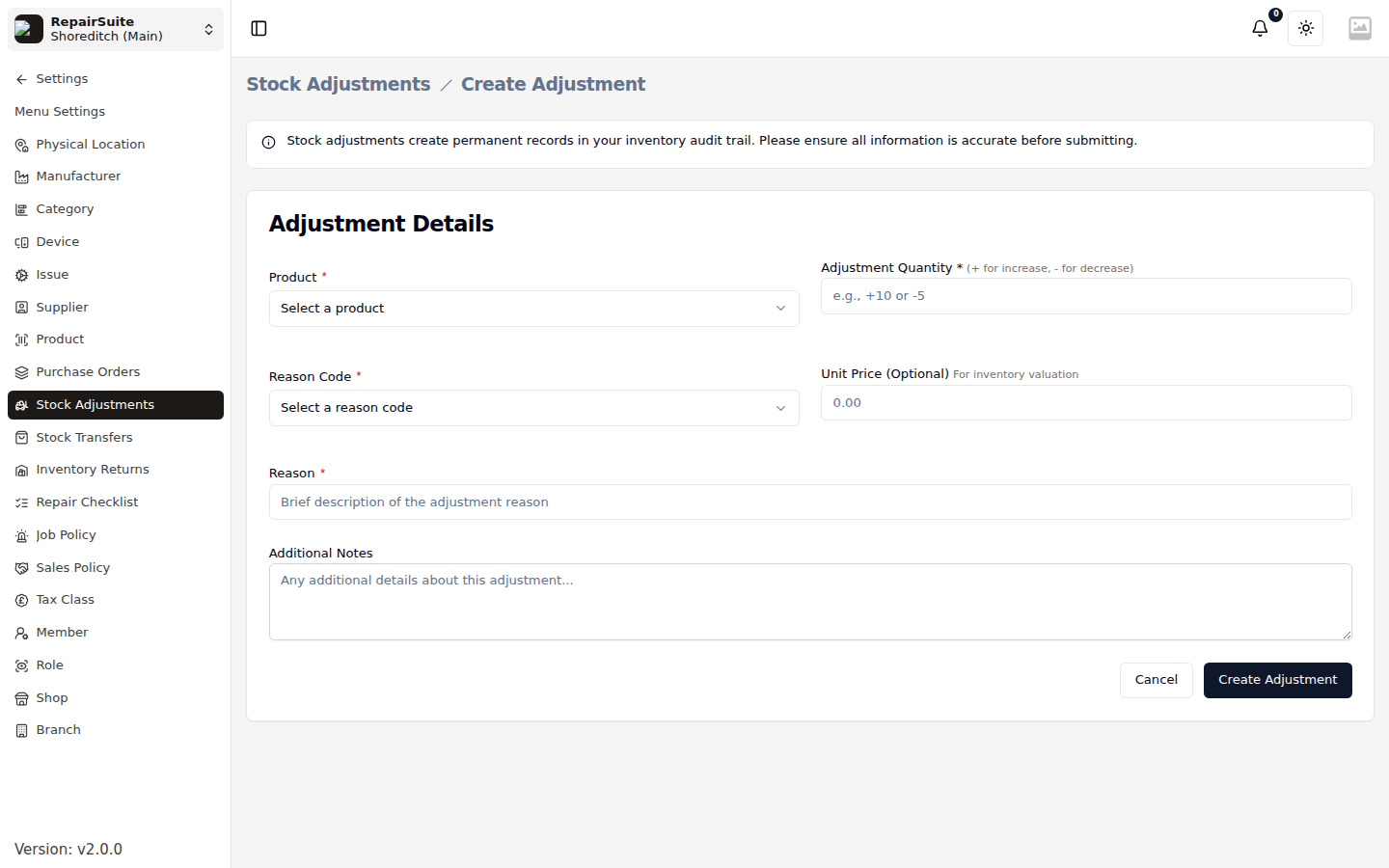
| Field | Description |
|---|---|
| Product | The line you are correcting |
| Adjustment Quantity | Signed — +10 to increase, -5 to decrease |
| Reason Code | The movement type: stock adjustment, damage, loss, manual increment or manual decrement |
| Unit Price (optional) | The value of the units, so inventory valuation stays right |
| Reason | A short description — this appears in the audit trail |
| Additional Notes | Any further detail |
Click Create Adjustment. The stock level changes immediately and a stock movement is recorded.
:::warning Adjustments are permanent entries in your inventory audit trail. There is no undo — an error has to be corrected with an opposite adjustment, and both stay on the record. Check the quantity and its sign before submitting. :::
Checking stock before you adjust
Stock Overview shows current stock, alert levels and last activity for every product, so you can see what actually needs correcting before you start.
Audit trail
Every adjustment keeps its product, signed quantity, reason code, reason text, who made it and when. That is what makes a shrinkage figure defensible at the end of the year, and it is why adjustments are a permissioned action — see Roles & Members.