Shop Settings
Manage your shop's core details — name, contact information, logo, and more.
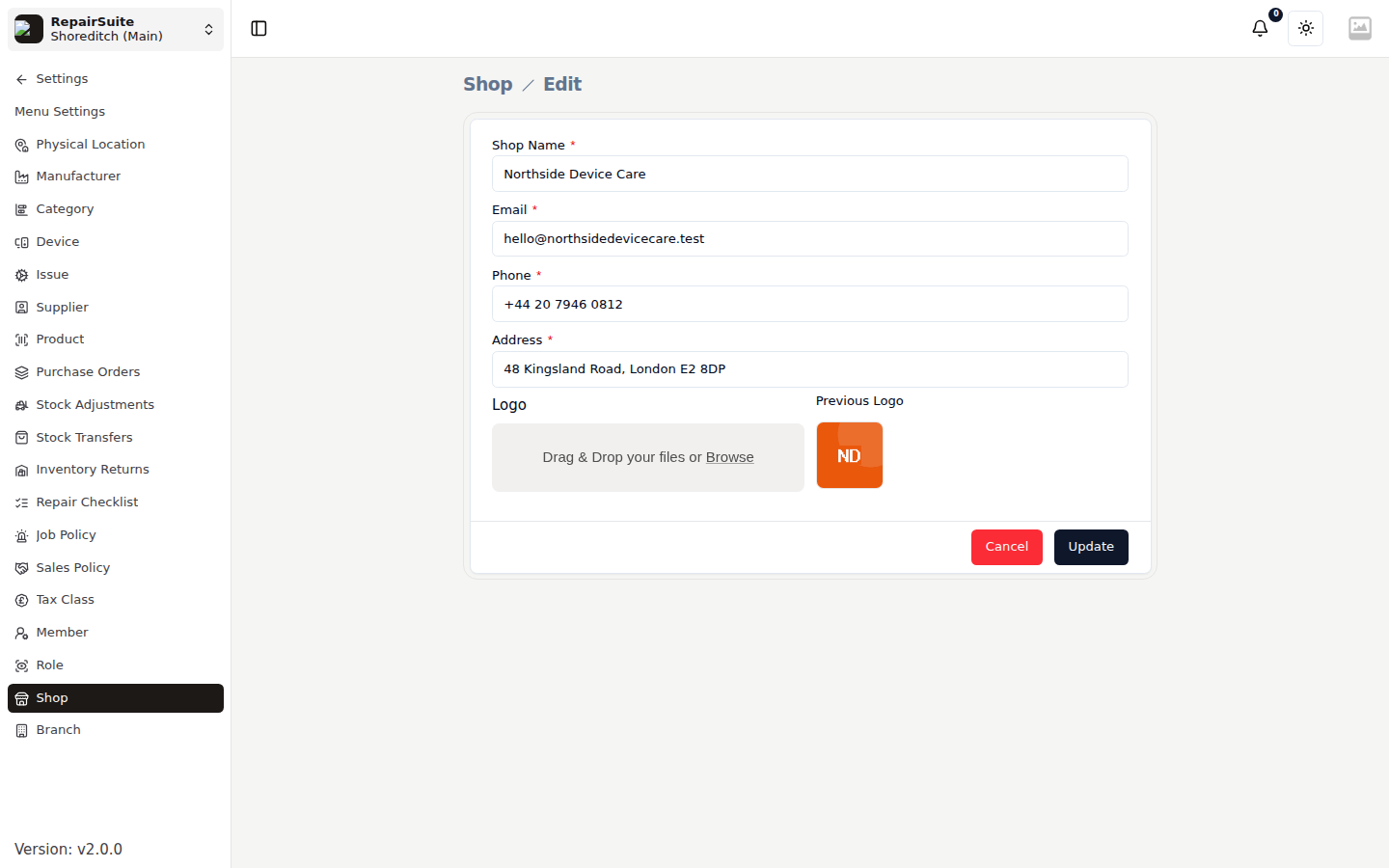
Accessing Shop Settings
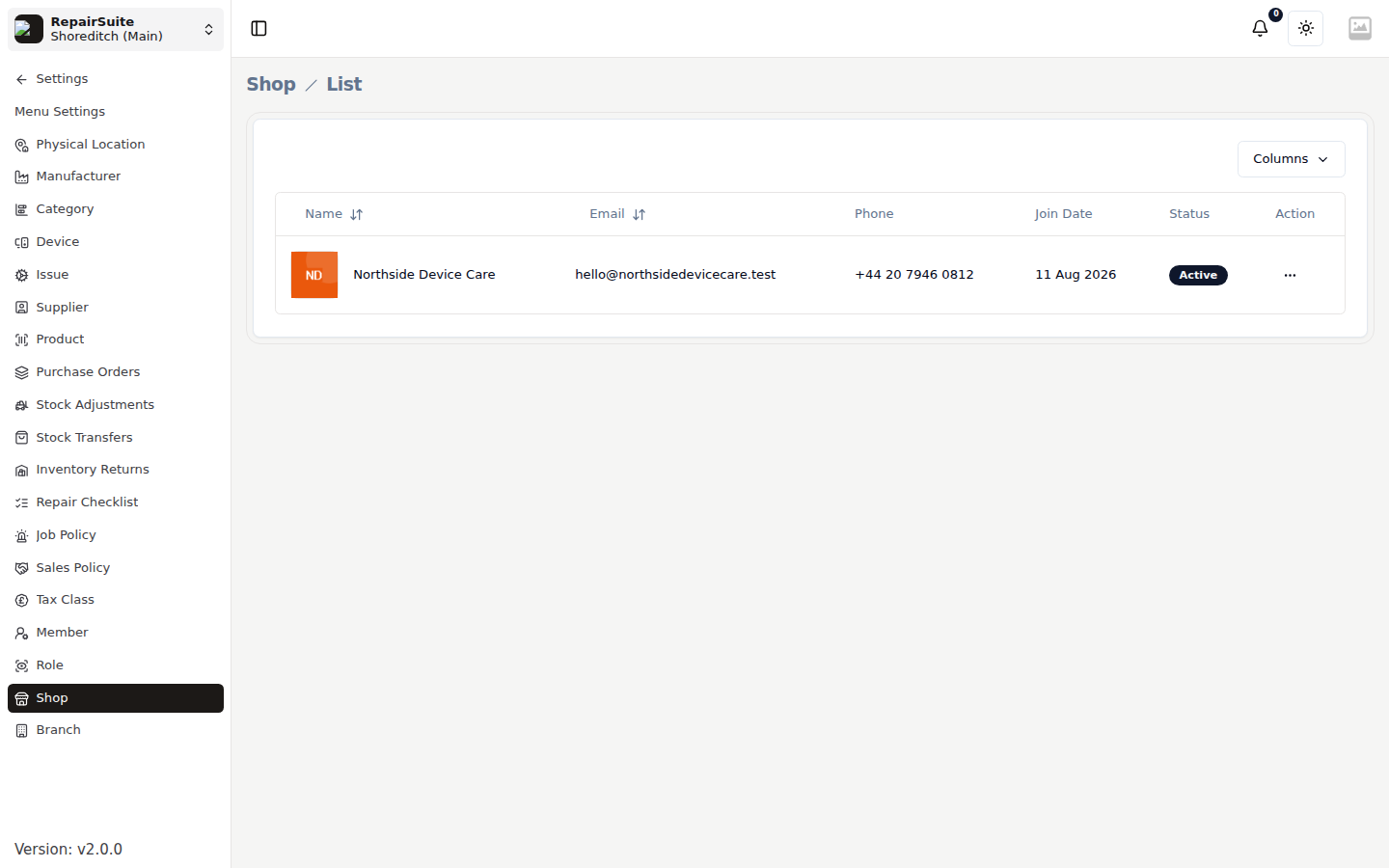
Go to Settings → Shop and edit your shop. Only the shop owner can change these; members do not see the screen.
Editable Fields
| Field | Description |
|---|---|
| Shop Name | Your business name |
| Phone | Primary contact number |
| Contact email | |
| Address | Business address |
| Logo | Shop logo, used on invoices, labels and the customer portal |
Updating Shop Details
- Click Edit on your shop
- Update the desired fields
- Click Save
Shop Logo
The shop logo appears on:
- Job invoices (PDF)
- Sale and trade-in invoices (PDF)
- Printed job labels
- The sidebar and the customer portal
Upload a PNG or JPG, at least 200×200px.
Booking and menu settings
Two settings screens are split out of this one:
- Booking Page — your public booking page, its branding, and the embed code
- Menu Settings — which optional modules appear in the sidebar
Multiple Shops
If you manage multiple shops, each one has its own settings. Switch between shops from the shop list.