Manage Subscription
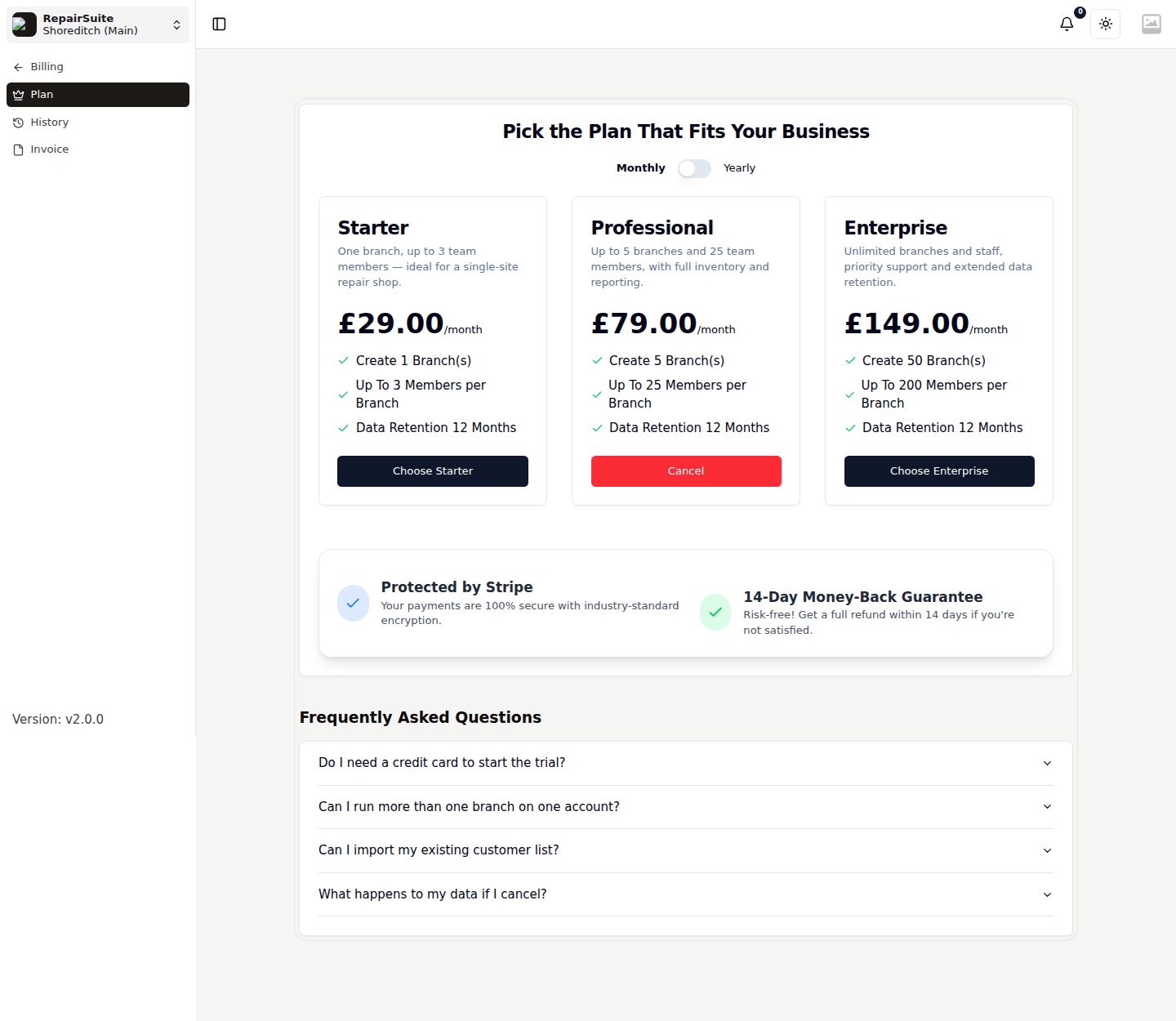
The Subscription page lets you view your current plan, manage billing, and cancel if needed.
Accessing Subscription Settings
Go to Billing → Plan (/billing/subscription). Billing has three screens:
| Screen | Shows |
|---|---|
| Plan | Your current plan, and the plans you can move to |
| History | Every subscription you have held, with its dates and status |
| Invoice | Your subscription invoices, each downloadable as a PDF |
What You'll See
| Section | Information |
|---|---|
| Current Plan | Plan name and tier |
| Status | Active, Trialling, Cancelled, Expired |
| Billing Interval | Monthly or Annual |
| Next Renewal | Date of next charge |
| Amount | Subscription cost per period |
| Started | When the subscription began |
Cancelling Your Subscription
- Open Billing → Plan
- Click Cancel Subscription
- A confirmation dialog appears
- Confirm the cancellation
:::warning
- Access continues until the end of the current billing period
- After that, your account features are restricted
- Your data is NOT deleted — subscribe again at any time to regain access
- Refunds are subject to the platform's refund policy :::
What Happens After Cancellation
- Your subscription status changes to "Cancelled"
- You can continue using the platform until the period end date
- After the period ends, you'll be redirected to the pricing page
- Resubscribe anytime to restore full access
Subscription history
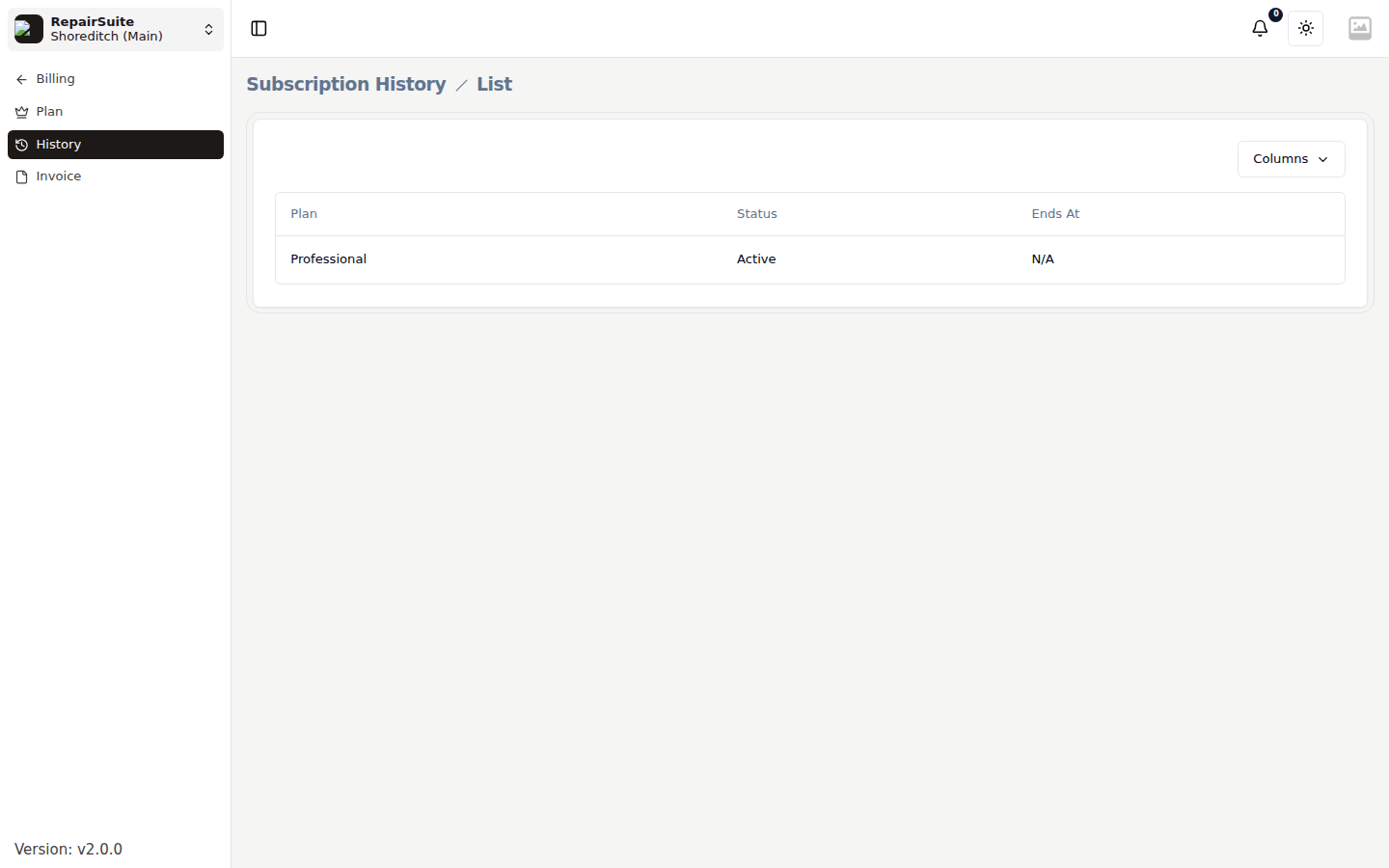
Billing → History is the record of every subscription on the account — useful when reconciling what you were charged and when.
Subscription invoices
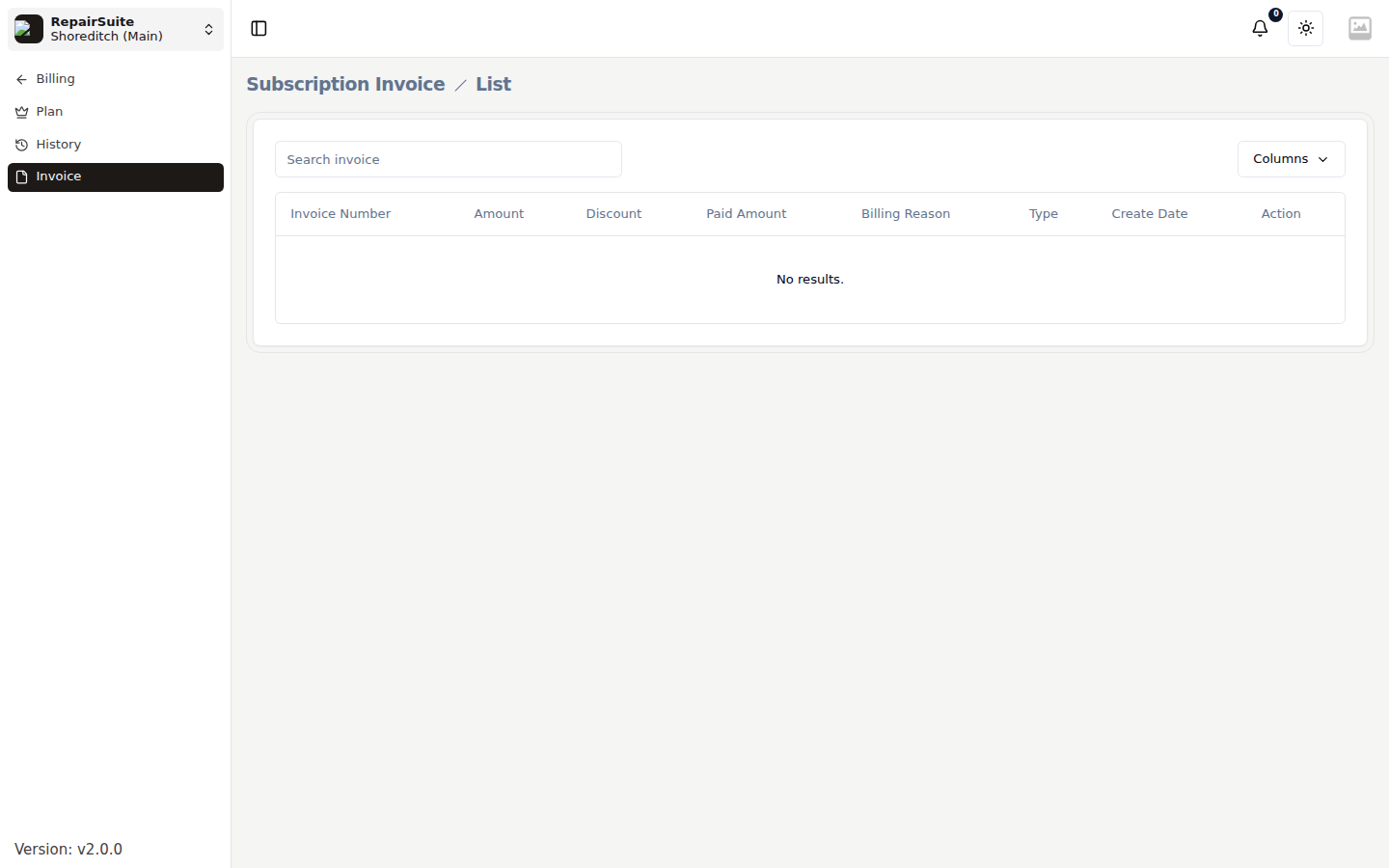
Billing → Invoice lists what RepairSuite has charged you. Download any of them as a PDF for your accounts. These are separate from the invoices you raise for your own customers — those live under Invoices.
Resubscribing
If you have cancelled and want to come back:
- Go to
/pricing - Choose a plan
- Complete checkout
Access is restored as soon as payment succeeds, with all your data intact.