Stock Transfers
Stock Transfers allow you to move products from one branch to another. This is useful when one branch has surplus stock and another is running low.
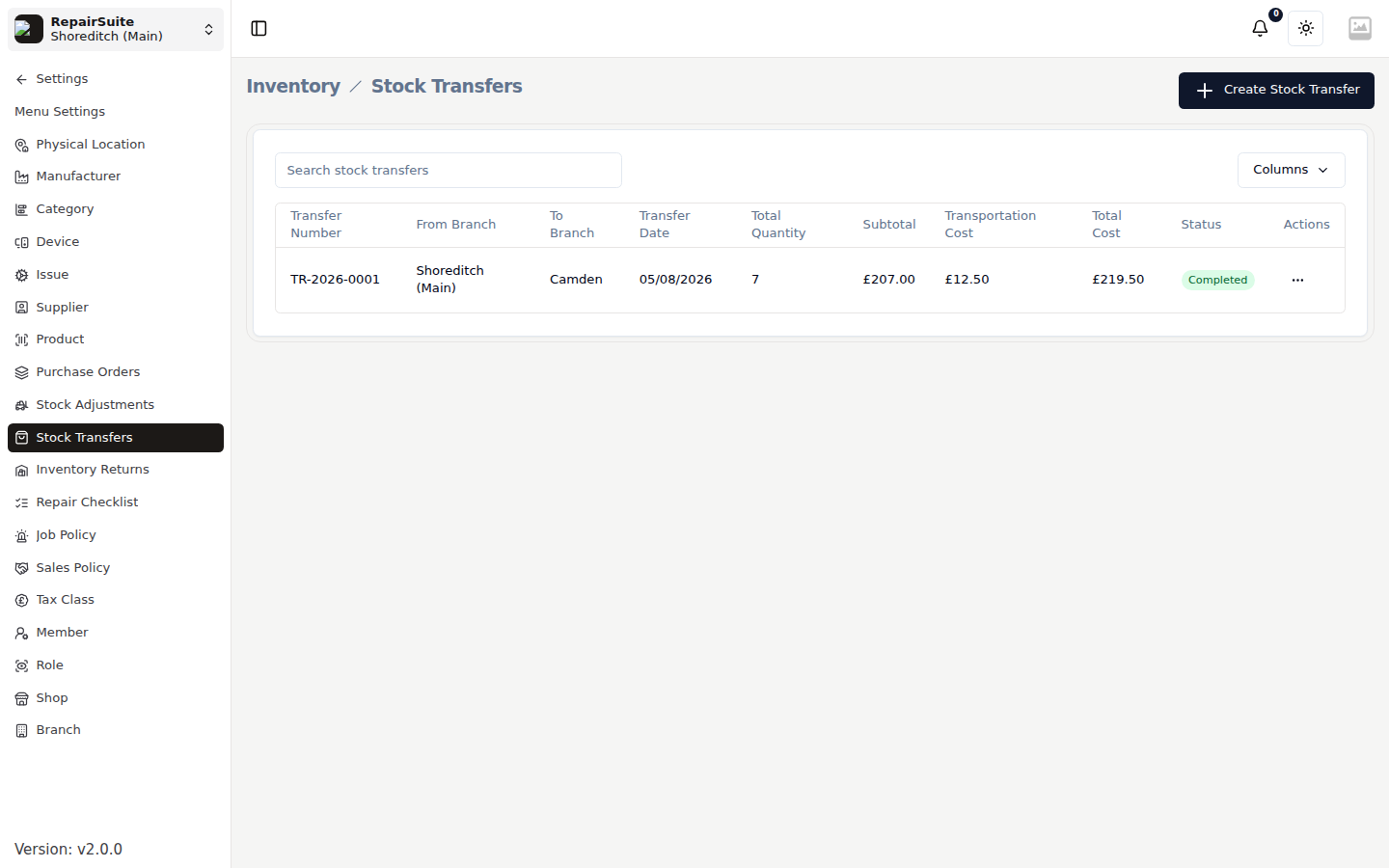
Transfer Flow
Draft ──▶ Submitted ──▶ Approved ──▶ Received
                  │
                  └──▶ Cancelled
| Status | Meaning |
|---|---|
| Draft | Being put together at the source branch |
| Submitted | Sent for approval |
| Approved | Agreed; stock leaves the source branch when it is sent |
| Received | Arrived and counted in at the destination |
| Cancelled | Stopped before receipt |
Creating a Stock Transfer
- Go to Settings → Stock Transfers
- Click New Transfer
- Fill in:
- From Branch — source (usually the current branch)
- To Branch — destination branch
- Notes (optional)
- Add items:
- Select products and quantities to transfer
- Save
Submitting a Transfer
After creating the transfer, click Submit to send it for approval by the destination branch.
Approving (Destination Branch)
The destination branch manager switches to their branch and:
- Opens the pending transfer
- Reviews the items
- Clicks Approve
Receiving (Destination Branch)
When the physical stock arrives:
- Open the approved transfer
- Click Receive
- Confirm the quantities that actually arrived
- Save, adding receiving notes if anything was short or damaged
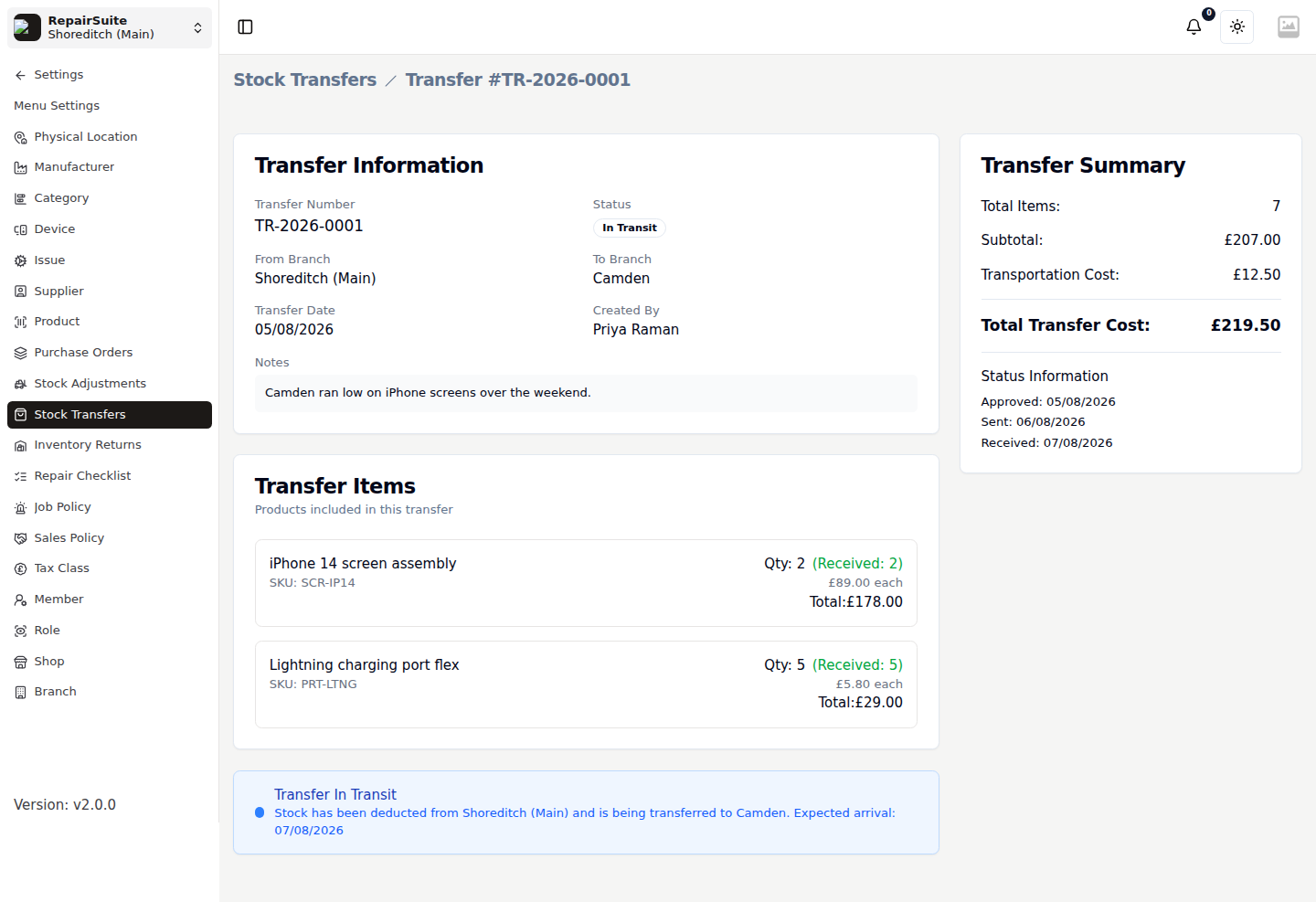
Stock is removed from the source branch and added to the destination, and a stock movement is recorded at both ends. The detail page keeps the full trail — who created, approved, sent and received the transfer, and when.
Cancelling a Transfer
Open the transfer and click Cancel (only available before it's received).