Shop and Primary Branch Setup
Once you have registered, verified your email and picked a plan, RepairSuite walks you through two short forms before it lets you in: your shop, then your primary branch. It sends you to whichever is missing, so there is nothing to find.
Step 1 — Set up your shop
The shop is your business identity in RepairSuite. Everything else — branches, staff, customers, stock — hangs off it.
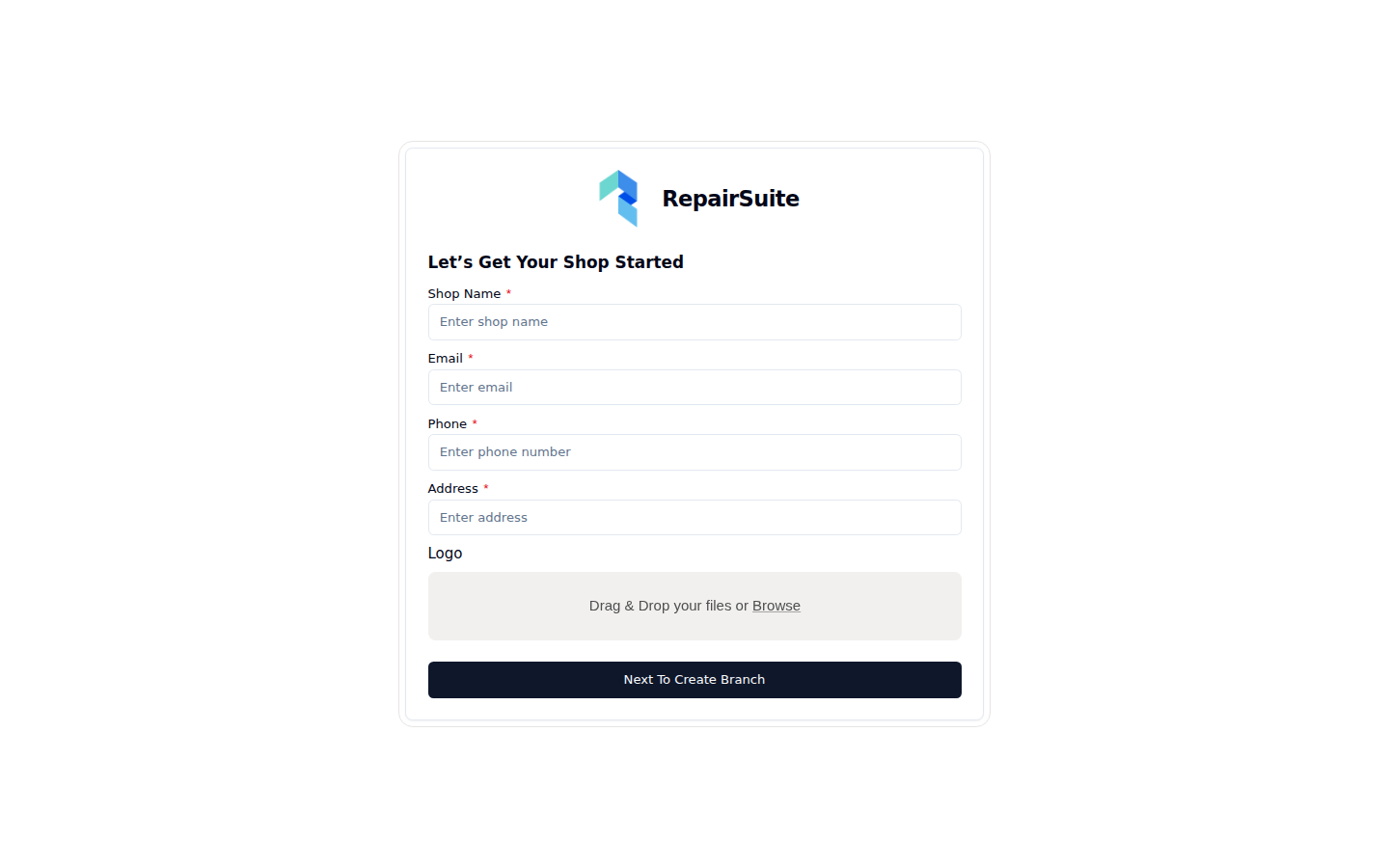
| Field | Description |
|---|---|
| Shop Name | Your business name |
| Your business email address | |
| Phone | Contact number for customers |
| Address | Where the business is |
| Logo | Optional but worth doing — it appears on invoices, labels and the sidebar |
Save, and RepairSuite takes you straight to the branch form.
Step 2 — Set up your primary branch
A branch is a physical location where repairs happen. If you run one site, this is simply your shop's address again.
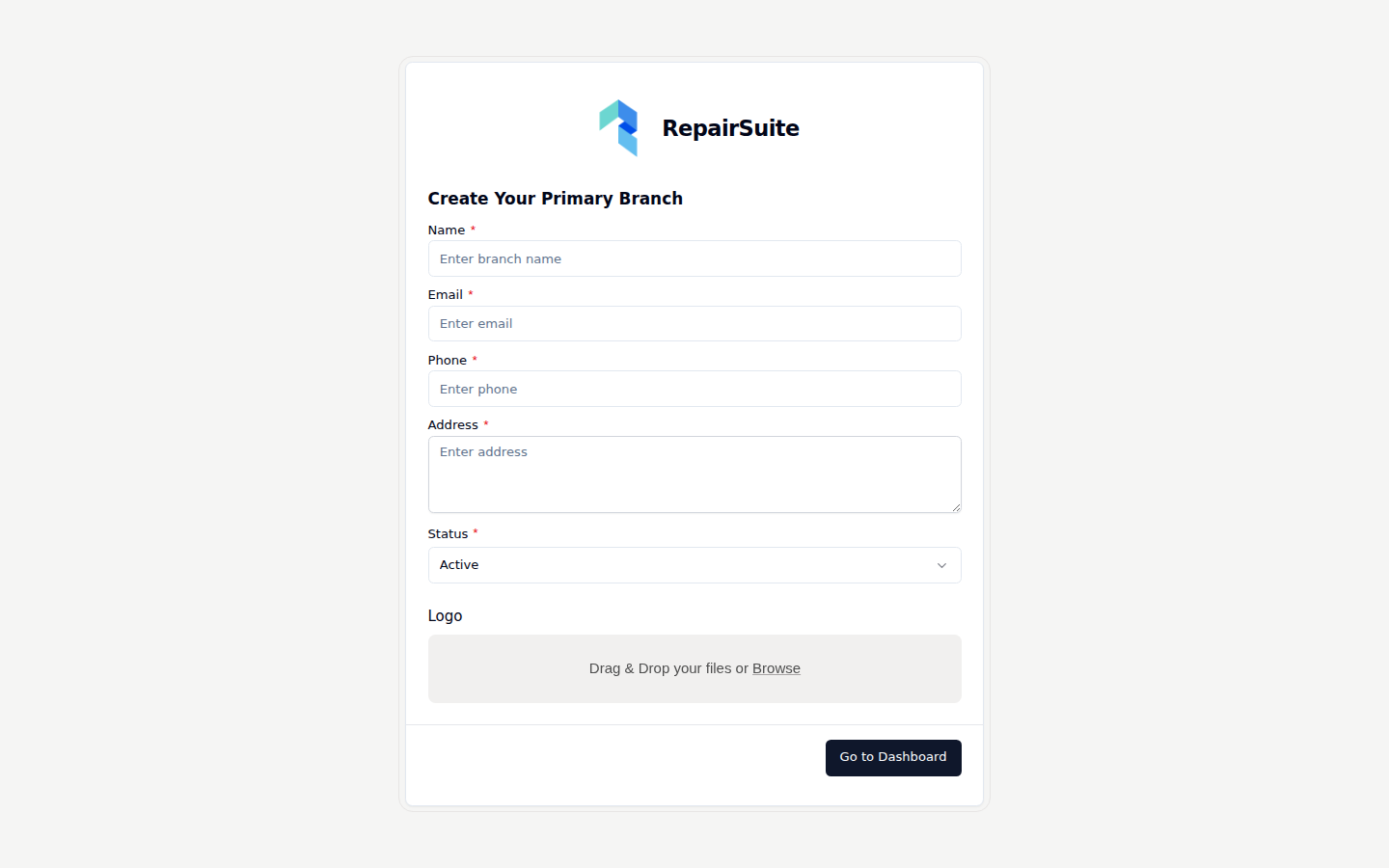
| Field | Description |
|---|---|
| Branch Name | "Main Branch", or the area it is in |
| Branch email, for branch-level correspondence | |
| Phone | Branch contact number |
| Address | The branch address |
| Status | Leave it Active so you can start using it |
| Logo | Optional; falls back to the shop logo |
You can add more branches later — see Set Up Your Branch.
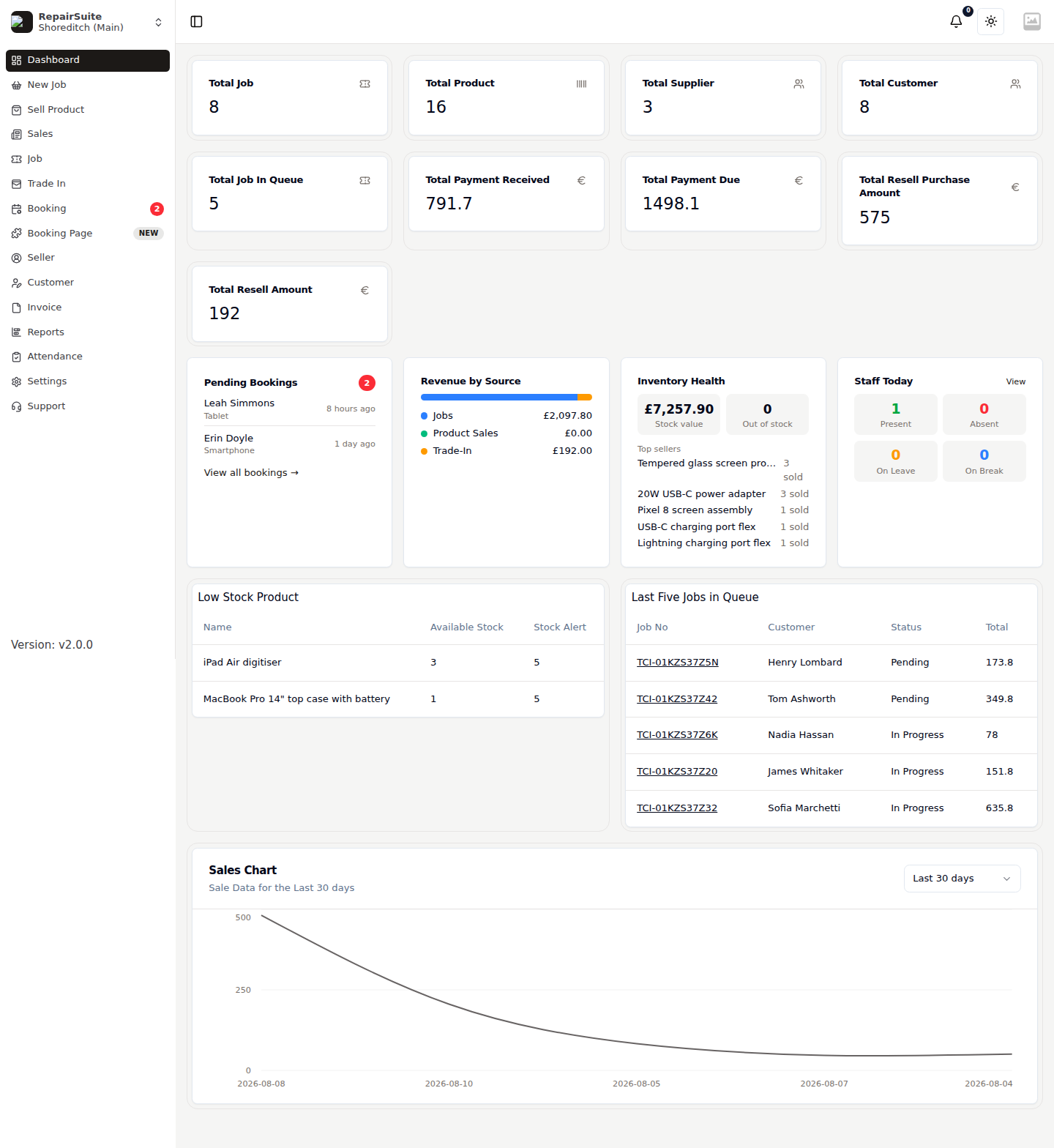
Step 3 — Your dashboard
With the shop and branch in place, RepairSuite opens the dashboard and the full sidebar becomes available.
What to do next
| Task | Why |
|---|---|
| Categories, manufacturers, devices and issues | The job wizard is built on this catalogue |
| Products & Parts | So parts can be suggested and stock tracked |
| Suppliers and Purchase Orders | To get stock in |
| Roles & Members | To get your team in with the right access |
| Booking Page & Widget | To take repair bookings online |
| Job Policy | So your terms print on every job invoice |