
The Manufacturer section allows you to manage all brands associated with devices, products, and inventory inside RepairSuite.
Keeping your manufacturer list accurate ensures better organization, reporting, and workflow efficiency across the system.
Where to Find It #
Go to:
Settings → Manufacturer
Manufacturer List
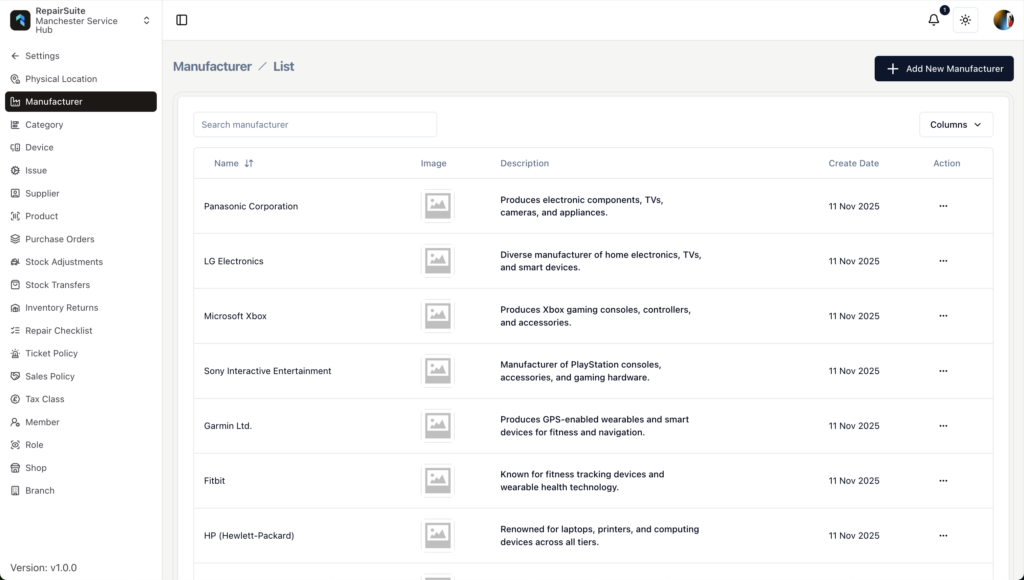
The Manufacturer List page displays all existing manufacturers in a structured table.
What You’ll See #
- Search bar – Quickly find a manufacturer by name
- Add New Manufacturer button – Create a new entry
- Manufacturer table with the following columns:
| Column | Description |
|---|---|
| Name | Manufacturer name |
| Image | Logo or brand image |
| Description | Short overview of the brand |
| Create Date | Date the manufacturer was added |
| Action | Additional options (e.g., edit or delete, depending on permissions) |
Search for a Manufacturer #
Use the search field at the top of the page to locate a manufacturer quickly.
This is helpful when:
- You manage many brands
- You need to update existing information
- You want to check for duplicates before adding a new entry
Add a New Manufacturer
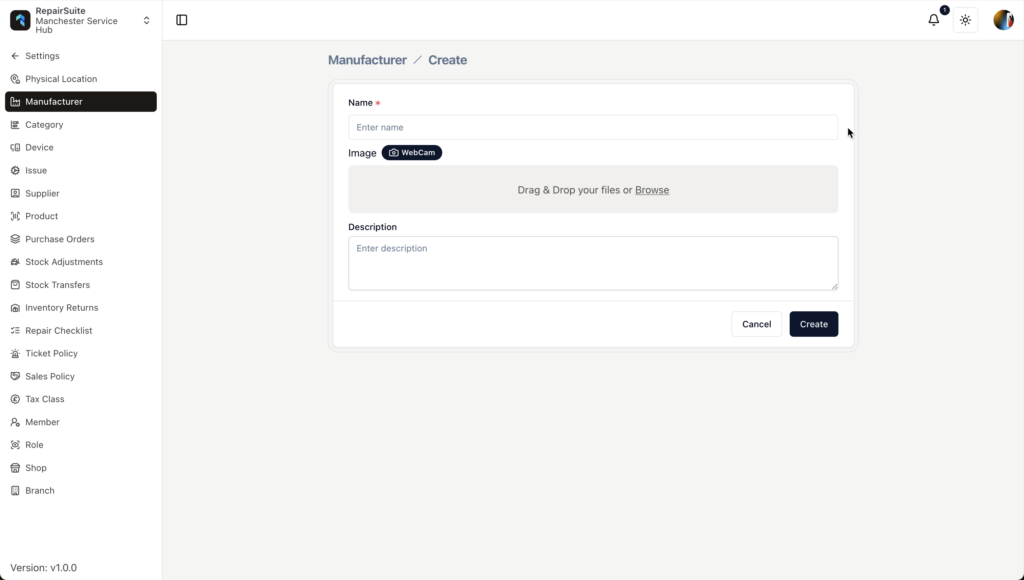
To create a new manufacturer:
- Click + Add New Manufacturer
- Fill in the required information
- Click Create
Required Field #
Name #
Enter the official name of the manufacturer.
Examples:
- Apple Inc.
- Samsung Electronics
- Sony Interactive Entertainment
Tips:
- Use the full brand name
- Avoid creating duplicate entries
Optional Fields #
Image #
You can upload a manufacturer logo.
Options:
- Drag & drop file
- Browse from your device
- Use webcam (if enabled)
Recommended:
- Square image format
- Clear logo
- Consistent size for better visual alignment
Description #
Add a short explanation of what the manufacturer produces.
Example:
Produces smartphones, laptops, and consumer electronics.
Keep descriptions short and relevant to your repair business.
Editing or Managing a Manufacturer
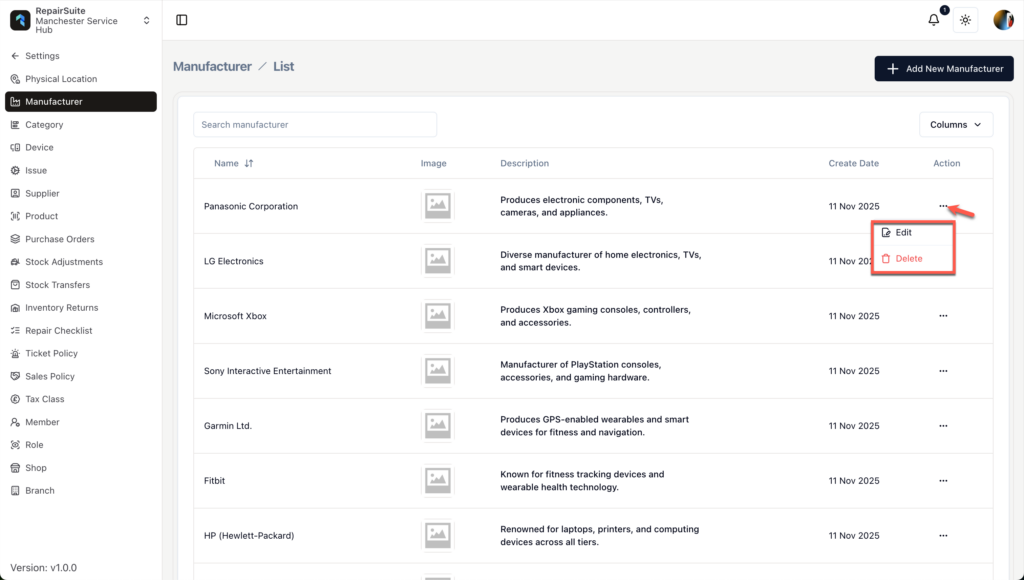
From the Action column, you can manage existing manufacturers.
Available actions depend on your user role permissions.
If you do not see edit or delete options, contact your system administrator.
Why Manufacturers Matter
The Manufacturer module helps with:
Device Organization #
Each device is linked to a manufacturer.
Example:
- Apple → iPhone 14
- Samsung → Galaxy S23
Inventory Accuracy #
Parts and products can be grouped by brand for better stock tracking.
Reporting #
Analyze:
- Repairs by brand
- Sales by manufacturer
- Brand-based inventory performance
Best Practices
- Add manufacturers before creating devices
- Maintain consistent naming format
- Avoid duplicate entries
- Upload logos for a cleaner interface
- Review and clean up unused manufacturers periodically
Permissions
Access is controlled by user roles.
To manage permissions:
Settings → Role
Typically available to:
- Admin
- Manager


